
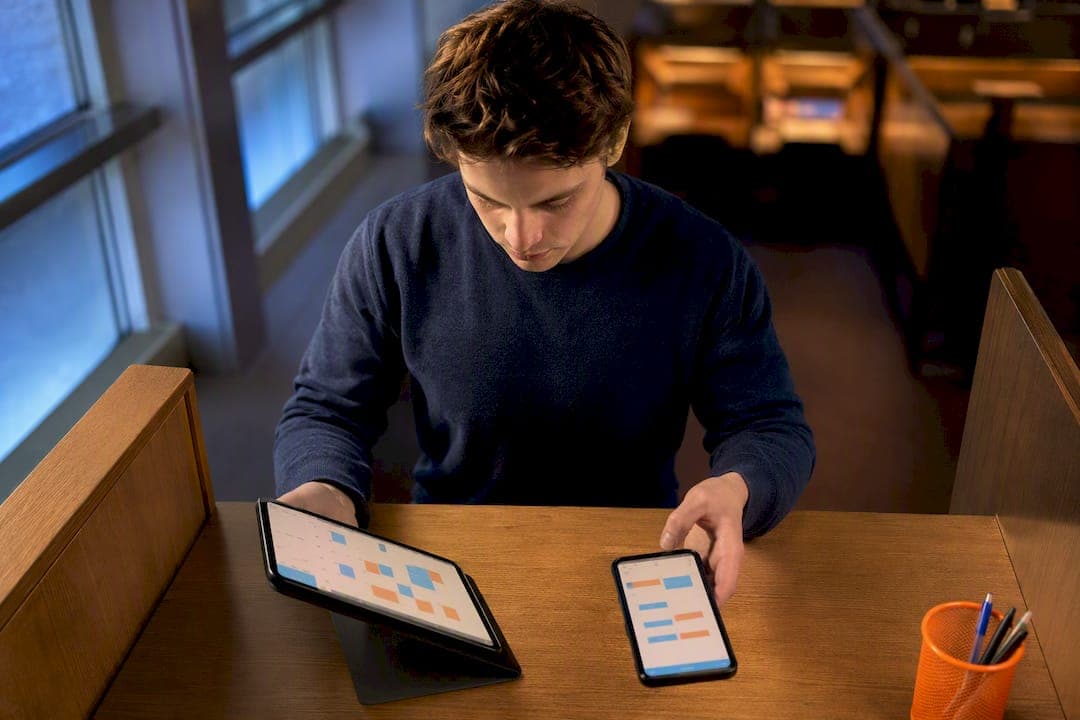
The fastest way to keep every assignment on your personal calendar is to subscribe to your LMS's calendar feed, which updates automatically whenever a professor changes a due date. If your school doesn't offer one, share a Google Calendar between accounts, or use a syllabus-parsing tool that writes assignments straight into Google Calendar. Each option trades off live updates against setup effort, and the sections below walk through exactly how to set up all three.
TL;DR:
- Subscribing to your LMS calendar feed ensures automatic updates, but refresh delays of several hours are common, especially before finals.
- Sharing a calendar grants edit access and is better for collaboration, while subscribing only allows view-only access across accounts.
- Automated syllabus parsing can fill gaps if your LMS lacks a reliable calendar feed or isn't supported, especially for managing multiple courses.
- Using an imported calendar file creates a static snapshot that won't update with future changes, leading to outdated assignment deadlines.
- Pairing LMS feeds with automated parsing tools like Semesterflow simplifies deadline management, especially for students juggling several courses with inconsistent tools.
Table of Contents
- Choose the Right Assignment Calendar Sync Method for Your Setup
- How Do I Subscribe to My LMS Calendar Feed?
- Should You Share or Subscribe to a Google Calendar Between Accounts?
- Adding Assignment Deadlines to Apple Calendar or Outlook
- Why Time Zones and Recurring Events Sometimes Shift Your Deadlines
- Fixing Stale Updates and Duplicate Assignments
- When Automated Syllabus Parsing Beats Manual Feeds
- A Minimal Semester Setup Worth Adopting in Week One
- Semesterflow: Skip the Manual Setup Entirely
- Official Help and Developer Documentation
- Sources
- FAQ
Choose the Right Assignment Calendar Sync Method for Your Setup
Not every student needs the same fix. The right assignment calendar sync method depends on what your school gives you and how many calendars you're already juggling.
Start by checking whether your learning management system publishes a calendar feed at all. Canvas, Blackboard, and Moodle all support this in some form, though the exact menu path varies by school. If yours does, subscribing is almost always the better move over manually copying dates.
Here's how to match your situation to a method:
- Your LMS has a Calendar Feed URL: Subscribe to it in Google Calendar. This gives you automatic, ongoing updates without touching anything again.
- You have separate school and personal Google accounts: Share the calendar between accounts, or add the second account to your phone or laptop. This gets you full sync, including edits.
- You only have a syllabus PDF and no working feed: Use an automated parser that extracts due dates and writes them into your calendar. This is the only practical route when your school's LMS calendar tools are broken, outdated, or nonexistent.
- You care about privacy: Subscribing keeps your calendar read-only, which limits what a stray edit can wreck. Sharing gives editability but exposes more of your schedule to whoever you share it with.
Most students end up combining two of these. A shared personal calendar for family or roommate coordination, plus a subscribed LMS feed for assignments, covers almost every situation without extra apps.
How Do I Subscribe to My LMS Calendar Feed?
Subscribing to your LMS's calendar feed is the closest thing to "set it and forget it" for assignment tracking. The feed pulls live data from your courses, so when a professor pushes back a due date, your calendar updates without you lifting a finger.
Canvas calls this the "Calendar Feed," and you'll usually find the link on the Calendar page under a "Calendar Feed" or "iCal Feed" button in the sidebar. Blackboard and Moodle bury similar links inside calendar settings or course tools, and naming varies by institution, so check your school's help documentation if you can't find it in five minutes.
Once you have the URL, here's how to add it in Google Calendar:
- Open Google Calendar on desktop (this doesn't work from the mobile app).
- Click the plus icon next to "Other calendars" in the left sidebar.
- Select "From URL."
- Paste the LMS feed link and click "Add calendar."
Google controls the refresh schedule on its end, and there's no manual refresh button. Expect updates to show up within a few hours rather than instantly, based on practical testing of Canvas-to-Google Calendar syncing. That delay catches people off guard the week before finals when a professor moves an exam date and the change hasn't propagated yet.
One quirk worth knowing: if you hide a course in your LMS calendar settings, its assignments often disappear from the feed too, even though the course is still active. If deadlines go missing, check course visibility before assuming the sync broke.
Pro Tip: Treat your feed URL like a password. Anyone with that link can see your full class schedule and assignment titles. If you ever paste it somewhere public by accident, most LMS platforms let you reset the feed URL from the same settings menu where you found it originally.
Should You Share or Subscribe to a Google Calendar Between Accounts?
Share your calendar when you need to edit events from either account. Subscribe when you just need to view them. That's the entire decision, but the setup steps differ enough to walk through separately.
If you run separate school and personal Google accounts, sharing gives you the most control. Google's own guidance is direct on this point: importing events creates a one-time snapshot that never updates, while sharing keeps both calendars connected going forward. If you've ever imported a .ics file and wondered why nothing changed after your professor edited an assignment, that's the reason.
To share a calendar between your two Google accounts:
- Open Google Calendar settings and find the calendar you want to share under "Settings for my calendars."
- Click "Share with specific people or groups."
- Enter the other account's email address.
- Choose a permission level. "See all event details" keeps it read-only. "Make changes to events" lets the other account edit.
- Send the invite and accept it from the receiving account.
If you'd rather see both calendars in one place without formal sharing, you can add the second Google account directly to your phone or calendar app. On most devices, that means going into account settings and signing in with the second address, then toggling on calendar sync for that account. This works well if you check both calendars constantly but rarely need to edit one from the other.
Sharing beats subscribing whenever collaboration matters. If you're coordinating a group project or splitting chores with roommates, editable access saves you from relaying every change by text.
Adding Assignment Deadlines to Apple Calendar or Outlook
Apple Calendar and Outlook users have two real paths in: sign in with your Google account for full sync, or subscribe to an iCal URL for a read-only feed. The right choice depends on whether you need to edit events from that app or just see them.
Signing in with your Google account gives you two-way sync. Changes made in Apple Calendar or Outlook show up in Google Calendar and vice versa. This is the better option if you actually manage your schedule from your phone's native calendar app instead of opening Google Calendar directly.
Subscribing via URL is simpler but one-directional. You'll see events, but you can't edit them from that app, and updates depend on how often the app checks the feed rather than happening instantly.
Here's the breakdown by platform:
- Apple Calendar (iCal): Go to Settings > Calendar > Accounts > Add Account > Google, and sign in for full sync. For a read-only feed instead, use File > New Calendar Subscription on Mac, or add the account through Settings on iOS, and paste the calendar's secret iCal URL.
- Microsoft Outlook Calendar: Go to Add Calendar > Subscribe from Web, and paste the Google Calendar's secret iCal address for read-only access. For full sync, add your Google account directly under File > Account Settings.
- Mobile apps generally: Expect caching delays. A change you make on desktop might take a few hours to appear on your phone's calendar app, even with full account sync.
Watch for permission prompts that silently fail. If a subscribed calendar simply never updates, the most common culprit is a URL that got copied incorrectly or a permission setting that reverted after an app update.
Why Time Zones and Recurring Events Sometimes Shift Your Deadlines
A recurring weekly quiz that suddenly shows up an hour early usually traces back to one thing: a mismatched time zone setting somewhere in the sync chain. Google Calendar builds recurring events using a rule format called RRULE, and how that rule expands into individual event instances depends entirely on the time zone attached to the original event, according to Google's developer documentation.
Here's the practical problem. If your LMS creates an assignment with no explicit time zone, or with a time zone that doesn't match your calendar app's default, the event can shift by an hour or more once it's expanded on your end. This happens most often around daylight saving transitions, when a recurring class or assignment reminder suddenly lands at the wrong time for a week or two.
Assignment due dates set for "11:59 PM" are especially vulnerable. If the underlying event carries a time zone field that doesn't match yours, that midnight deadline can quietly become 10:59 PM or 12:59 AM on your calendar, and you won't notice until you're staring at a locked submission portal.
Three checks fix most of these problems:
- Confirm the event's time zone explicitly rather than trusting the default your calendar app assumed.
- For all-day deadlines, prefer a date-only event over a timed one. Date-only events don't carry a time zone field, so they can't shift.
- After importing or subscribing to a new feed, open a recurring event and check a few future instances, not just the first one. Recurrence expansion sometimes drifts differently than the original event suggests.
None of this shows up as an error message. Your calendar will look perfectly normal, right up until you miss something because it was scheduled an hour off.
Fixing Stale Updates and Duplicate Assignments
Two problems cause almost every assignment calendar sync complaint: events that stop updating, and the same assignment appearing twice. Both have straightforward fixes once you know what's actually happening.
Stale events almost always mean you imported instead of subscribed. An import copies events once, and nothing you do afterward changes them, no matter how many times the source updates. If your assignments feel frozen in time, check whether you originally used "Import" instead of "From URL" or a calendar share, and switch to one of those methods instead.
Duplicates show up when you've layered two sync methods on top of each other, like subscribing to an LMS feed and also importing a syllabus file that covers the same assignments. Fixing this means identifying every calendar source feeding your view and removing the overlap, not just deleting the duplicate events (which will just reappear on the next sync cycle).
- Open your calendar's settings list and check every source under "Other calendars" and any shared calendars.
- Remove the redundant source rather than deleting individual duplicate events one by one.
- Test whether a change propagates by editing something small in the source and checking your calendar a few hours later.
The engineering reason duplicates happen so often is that many simple sync tools just add new events instead of checking whether that assignment already exists. Better-designed sync pipelines separate extraction, normalization, and stateful update tracking, so a changed due date updates the existing calendar entry rather than creating a second one next to it.
Pro Tip: Before removing a calendar source, rename it something obvious like "TEST DELETE ME" and wait 24 hours. If assignments vanish from your view, you found the right one to cut.
When Automated Syllabus Parsing Beats Manual Feeds
Manual feeds and calendar sharing work well when your LMS cooperates. They fall apart fast when you're managing five or six syllabi that each format due dates differently, half of which never made it into a working LMS calendar feed in the first place.
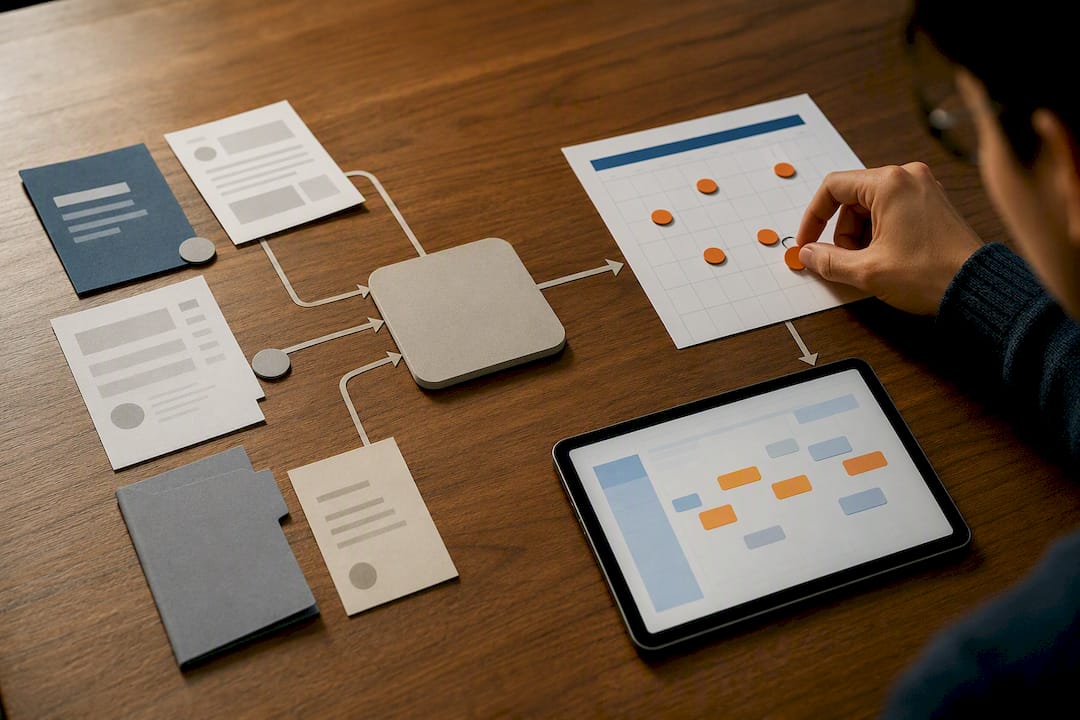
That's the gap automated syllabus parsing closes. Semesterflow reads an uploaded syllabus and extracts assignment titles, due dates, and exam dates, then writes those events directly into your Google Calendar without you retyping anything.
The tool goes further than basic date extraction:
- Tracking GPA updates automatically as grades come in.
- Providing alerts for courses with declining performance.
- Organizing documents automatically to keep syllabi and assignments sorted.
This approach makes the most sense for students juggling a heavy course load, students whose LMS calendar tools are unreliable or missing entirely, and anyone who wants grade tracking bundled with deadline management instead of running two separate systems.
A Minimal Semester Setup Worth Adopting in Week One
Most students overbuild their calendar system, adding three apps when one clean setup would do. Here's the version worth adopting in the first week of classes, before the deadline pileup starts.
Subscribe to every LMS calendar feed your courses offer. For any class without a working feed, upload the syllabus to an automated parser instead of manually typing dates into your phone. If you run separate school and personal Google accounts, share the school calendar rather than importing it, so future changes actually reach you.
Before the semester gets busy, run a quick checklist: confirm each subscription actually appears in your calendar, check that event time zones match your own, and verify refresh behavior by watching for one real assignment update to show up within the expected window.
The pattern that causes the most missed deadlines isn't a broken sync. It's students trusting a one-time import they set up in August and never checking again.
— Haden
Semesterflow: Skip the Manual Setup Entirely
If you're tired of hunting for Calendar Feed links buried three menus deep, or your school's LMS simply doesn't offer one, Semesterflow gets you the same result without any of that setup work. Upload a syllabus and it extracts assignments, exams, and due dates automatically, then writes them straight into your Google Calendar.
Beyond the sync itself, Semesterflow tracks your GPA and flags at-risk grades before a bad midterm turns into a bad semester, and keeps per-class grade profiles organized so you're not digging through email for a syllabus in week 12. Students handling five or more courses, or anyone whose school calendar tools are inconsistent, tend to get the most value out of it.
If privacy around uploaded coursework is a concern, Semesterflow's security practices are worth a look before you commit.
Try the free tier and upload one syllabus to see how the sync actually looks in your own calendar. Visit Semesterflow's planner to get started.
Official Help and Developer Documentation
For verification or advanced setup, Google's own resources cover the details this guide simplifies. Start with the official steps for syncing your calendar with other apps, which walks through the Secret iCal address and From URL method directly. For the technical side of recurring events, Google's developer documentation on recurring events explains RRULE and time zone expansion in more depth. If you're weighing connector tools, the SyllaSync extension is a working example of a Blackboard-to-Google-Calendar connector.
Beyond calendar sync itself, building better study habits matters just as much as deadline tracking. This homework focus guide offers three practical steps to start using tonight, alongside whatever calendar system you land on.
Sources
- Recurring events | Google Calendar | Google for Developers
- SyllaSync – Get this Extension for 🦊 Firefox (en-US)
- Sync pipeline architecture notes
FAQ
What's the Difference Between Importing and Subscribing to a Calendar?
Importing copies events once and never updates again, while subscribing (or sharing) keeps your calendar connected to the live source so future changes appear automatically.
Why Isn't My Subscribed Calendar Updating Right Away?
Google controls the refresh schedule for subscribed calendars, and there's no manual refresh button, so updates can take several hours to appear.
Can I Edit Events From a Subscribed iCal Feed?
No. Subscribed feeds added "From URL" are read-only; if you need to edit assignment events, share the calendar between accounts instead.
How Do I Stop Assignment Calendar Sync From Sending Too Many Notifications?
Adjust notification settings per calendar rather than globally, and set fewer, earlier reminders for lower-priority coursework so urgent deadlines don't get buried in noise.
Does Semesterflow Replace My LMS Calendar Feed?
Semesterflow works well as a replacement when your LMS feed is unreliable or missing, since it extracts assignments directly from your syllabus and writes them to Google Calendar without you configuring a feed URL at all.