

The fastest route is subscribing to your LMS calendar feed when your school offers one, since it bulk-imports every due date at once. When that is not available, pair Google Tasks with scheduled study blocks, or let an automated syllabus parser do the data entry for you. LMS feeds are read-only and can take up to 24 hours to update, so pick the method that matches how much control you want.
TL;DR:
- Subscribing to LMS calendar feeds is the fastest way to import all assignments at once, but updates can take up to 24 hours to reflect.
- Use tasks for assignments with deadlines and no fixed work time, and create scheduled events for protected study blocks or specific work sessions.
- Automated syllabus parsers offer the most comprehensive solution for multiple classes, pulling data directly from syllabi to sync with your calendar.
- Consistently use color coding and naming conventions to quickly identify course, assignment type, and priority status on your calendar.
- Set specific reminders for deadlines based on the assignment's importance, layering notifications for high-stakes coursework and ensuring alerts aren't missed.
Table of Contents
- How do you create tasks and events in Google Calendar?
- How do you import LMS calendar feeds from Canvas, Blackboard, or Brightspace?
- How do you use Google Tasks to turn assignments into calendar items?
- How should you organize calendars, colors, and names for assignments?
- Why do assignments go missing or fail to update, and how do you fix it?
- How do automated syllabus-to-calendar tools cut down the manual work?
- How do you view, edit, and mark tasks complete?
- How do you connect third-party assignment apps to Google Calendar?
- How do you set reminders specifically for assignment deadlines?
- How do you share an assignment calendar with classmates or a study group?
- How do you handle recurring assignments and keep up with real-time course changes?
- Which method actually fits how you work?
- Semester Flow: see pricing or try it free
- FAQ
- Sources
How do you create tasks and events in Google Calendar?
Google Calendar gives you two different building blocks for assignments: tasks and events. Picking the right one matters more than it sounds.
A task is a to-do item that sits on your calendar until you mark it done. It's suited to assignments with a deadline, but no fixed working time, like "submit lab report." An event is a fixed block of time, better for things like "write essay draft, 3 to 5 PM" or a study session you want to protect on your schedule.
On desktop, the creation path is nearly identical for both:
- Click Create in the top left corner of Google Calendar.
- Choose Task for a to-do or Event for a scheduled block.
- For a task, add a title, date, and optional time, then save.
- For an event, set a start and end time, add a description, attach a file if needed, and choose your availability status.
On mobile, tap the + button in the bottom corner, then select Task or Event from the menu that appears. The fields are the same, just arranged for a smaller screen.
For events, a few settings are worth using every time:
- Add the assignment prompt or rubric as an attachment so you don't have to dig through your LMS later.
- Set your availability to Busy for any block you intend to protect from other plans.
- Write a short description with the professor's name or course code for quick scanning later.
- Use the location field for a classroom or study spot if it helps you plan your day.
Notifications behave differently depending on how you build the task. According to Google's support documentation, a task without a specific time defaults to a 9 AM notification on its due date, while a task with a time attached notifies you at that scheduled time instead.
Pro Tip: If an assignment has a hard deadline but you want a reminder earlier in the day to start it, create the task with a specific morning time rather than leaving it at the default.
How do you import LMS calendar feeds from Canvas, Blackboard, or Brightspace?
If your school's learning platform offers a calendar feed, this is the lowest-effort way to get every assignment onto your calendar at once instead of entering them one by one.
Most learning management systems publish an iCal feed, a single URL that contains all your course due dates. Campus IT support pages consistently point to the same sequence for finding and using it, as described in Instructure's own Canvas community guide and echoed in university IT documentation:
- Log into your LMS (Canvas, Blackboard, or Brightspace) and open the calendar section.
- Look for a Calendar Feed, Subscribe, or Export Calendar link, often in a sidebar or settings menu.
- Copy the iCal URL provided. It usually ends in .ics.
- In Google Calendar, click the + next to "Other calendars" in the left panel.
- Choose From URL, paste the link, and click Add calendar.
If your LMS instead gives you a downloadable file rather than a link, you can import it directly: go to Settings, select Import & export, and upload the .ics file.
A few things to know before you rely on this method:
- The feed is read-only, so you cannot edit or check off due dates from inside Google Calendar itself.
- Changes made by your professor in the LMS will not show up instantly.
Updates from an LMS feed can take up to 24 hours to appear in Google Calendar, according to Canvas's own sync documentation, so don't panic if a newly posted assignment doesn't show up the moment you check. That same source notes Canvas feeds typically include events up to about a year in the future and about a month in the past, capped at around a thousand items, which covers a full semester without manual work. When you add a new class mid-semester, the feed does not always pick it up automatically. You will usually need to re-copy the URL or re-subscribe to catch the new course.
How do you use Google Tasks to turn assignments into calendar items?
Google Tasks lives in a side panel right inside Google Calendar, which makes it the easiest way to track assignment to-dos without leaving the app you already check every day.
You can add a task from two places: the Tasks panel on the right side of the calendar, or directly on the calendar grid by clicking an empty time slot and selecting Task instead of Event. Either way, once you give the task a date, it shows up on the calendar itself, not just in a hidden list.
This is where pairing tasks with events becomes useful. Google's own product page for Tasks recommends treating a task as the deadline marker and a separate event as the actual work session. A typical workflow looks like this:
- Create a task titled with the assignment name and set its due date to match the LMS deadline.
- Create a calendar event for when you plan to actually do the work, and mark it Busy so nothing else gets booked over it.
- Check off the task once submitted, which removes it from your active list without deleting the record.
Repeating tasks and subtasks have real limits worth knowing before you build a whole semester around them. Google Tasks supports basic repeat intervals, but it does not handle complex academic patterns like "every other Tuesday except holidays" cleanly, and subtasks do not carry their own due dates or notifications independent of the parent task.
Pro Tip: For weekly reading assignments or recurring problem sets, set the task to repeat weekly rather than recreating it each time, but double check the date after any holiday break since the pattern won't skip it for you.
How should you organize calendars, colors, and names for assignments?
A calendar full of due dates is only useful if you can scan it in five seconds and know what matters. Two organizational approaches work well, depending on your course load.
Creating a separate calendar per course lets you toggle individual classes on or off when you want to focus, and it makes color-coding automatic since each calendar gets its own color. The tradeoff is more setup time and more calendars to manage if you're taking five or six classes.
A single "Assignments" calendar with course prefixes is faster to set up and keeps everything in one place, at the cost of losing the one-click toggle for hiding a specific class.
Either way, color and naming conventions make the biggest difference in how usable your calendar feels day to day:
- Assign each course a consistent color in Calendar settings so you recognize subjects at a glance, even across different calendars.
- Use a naming pattern like "[BIO201] HW: Chapter 6 Questions" so the course code sorts and scans consistently.
- Add a short tag like "[EXAM]" or "[QUIZ]" to the title for assignment types you want to spot instantly.
- Paste a link to the assignment page or shared doc in the event description instead of leaving the calendar entry bare.
Pro Tip: Keep your naming convention identical across every course, even if one professor's LMS labels things differently. Consistency in your own calendar matters more than matching the source.
Attachments are worth the extra thirty seconds, too. Attaching the rubric or prompt directly to the calendar event means you're not hunting through a cluttered LMS inbox the night before something is due.
Why do assignments go missing or fail to update, and how do you fix it?
Most sync problems come down to one of four causes, and three of them have a quick fix.
If an assignment you know was posted isn't showing up, the most common explanation is simple latency. LMS calendar feeds can take up to 24 hours to update in Google Calendar, so check back the next day before assuming something is broken.
Try these steps in order:
- Wait 24 hours, then refresh Google Calendar, since most "missing assignment" issues resolve on their own.
- If you just enrolled in a new course, re-copy the iCal URL from your LMS and re-subscribe. New courses are not always picked up automatically.
- Confirm the Tasks calendar is checked under "My calendars" in the left sidebar. It's easy to accidentally hide it.
- If a due date looks wrong, remember the feed is read-only. The fix has to happen in the LMS, not in Google Calendar.
A few other checks worth running:
- Make sure you're logged into the correct Google account if you use separate school and personal accounts.
- Check that calendar sharing permissions weren't changed if you manage a shared study group calendar.
If none of this resolves it after a day or two, contact your campus IT help desk. They can confirm whether the LMS feed itself is down, which is faster than guessing. For a single missing assignment with a deadline in the next hour, though, it's quicker to just add it manually than wait on a support ticket.
How do automated syllabus-to-calendar tools cut down the manual work?
Copying every due date from a dozen syllabi into Google Calendar by hand is exactly the kind of repetitive task software handles better than people. Tools built for this work by having you upload a syllabus, which the AI reads to pull out class schedules, assignment due dates, and grading policies, then syncs that information directly into your Google Calendar.
This approach tends to help most if you recognize your own situation in one of these:
- You're juggling five or more classes with different due date formats and don't want to standardize them by hand.
- Your professors use complex weighted grading policies you'd otherwise have to calculate yourself to know where you stand.
- You want GPA tracking alongside your schedule, not just a list of dates.
Even with automation handling the entry, your LMS remains the record of truth. If a professor pushes back a deadline, that change exists in the LMS first, and any calendar tool, automated or not, is only as current as its last sync.
How do you view, edit, and mark tasks complete?
Viewing your tasks is straightforward from either the main calendar grid, where dated tasks appear as small checkbox items, or from the Tasks panel on the right side of Google Calendar, which lists everything regardless of date.
To edit a task, click it directly on the calendar or in the side panel. You can change the title, date, time, or description from there without deleting and recreating it. Editing an event follows the same pattern: click it, adjust the details, and save.
Marking something complete is just a matter of clicking the checkbox next to the task, either on the calendar or in the panel. Completed tasks disappear from the active view but aren't permanently deleted. You can find them again by opening the Tasks panel and selecting the option to show completed items, which is useful if you need to confirm you actually submitted something a week ago.
Deleting a task or event is separate from completing it. Right-click or open the three-dot menu on the item and choose Delete if you created something by mistake or no longer need the reminder. For tasks tied to a graded assignment, it's generally safer to mark complete rather than delete, since it keeps a record in your history.
How do you connect third-party assignment apps to Google Calendar?
Plenty of task managers and planning apps outside Google's own ecosystem can sync with your calendar, and the connection usually happens one of two ways.
The first is a direct two-way integration, where the third-party app has a built-in Google Calendar connector in its settings. You authorize access once, and tasks created in that app appear automatically as calendar events or tasks, with updates flowing both directions.

The second is a one-way calendar feed, similar to how an LMS feed works. The app generates an iCal URL that you add to Google Calendar through Other calendars → + → From URL, the same path used for LMS subscriptions. This method is read-only, so changes have to be made in the original app.
Before connecting any third-party tool, check whether it pulls data automatically from your LMS or requires manual entry on your part. A tool that still asks you to type in every assignment by hand isn't saving you much time over just using Google Tasks directly. Automated syllabus parsers aim to remove that manual step entirely by reading the syllabus itself rather than waiting for you to input dates one by one.
How do you set reminders specifically for assignment deadlines?
Reminders work differently depending on whether you've built the assignment as a task or an event, so it's worth setting them deliberately rather than relying on defaults.
For tasks, Google's documentation notes that a task without a specific time triggers a notification at 9 AM on its due date by default. If you want an earlier warning, say the night before, you need to either add a specific time to the task or create a separate event as a manual reminder.
For events, open the event, click Add notification, and choose how far in advance you want to be alerted. You can stack multiple notifications on one event, for example one a day before and another an hour before, which works well for high-stakes deadlines like final papers or exams.
A practical pattern many students use is layering reminders by assignment weight: a light one-notification setup for routine homework, and a two or three-notification stack for anything that carries significant grade weight. Mobile notifications depend on your phone's own notification settings for the Google Calendar app being turned on, so it's worth checking that once rather than discovering a missed reminder the hard way.
How do you share an assignment calendar with classmates or a study group?
Sharing a calendar in Google Calendar is built for exactly this kind of use case, whether you're coordinating with a single study partner or an entire project group.
Open Settings and sharing for the specific calendar you want to share, found by hovering over the calendar name in the left sidebar and clicking the three-dot menu. Under Share with specific people, add your classmates' email addresses and choose their permission level: See only free/busy, See all event details, or Make changes to events if you want them to be able to edit shared entries directly.
For a group project, creating one shared calendar specifically for that project, separate from your personal course calendars, keeps everyone's edits in one place without cluttering your own schedule. Anyone with edit access can add meeting times or deadline reminders, and those changes show up for the whole group instantly, unlike the up-to-24-hour delay you'd see with an LMS feed.
If you'd rather not grant edit access, sharing a public link with view-only permissions works for study groups that just need to see dates without touching the calendar itself.
How do you handle recurring assignments and keep up with real-time course changes?
Recurring assignments, weekly readings, lab reports, or discussion posts, are where a little upfront setup saves a lot of repeated manual entry.
For tasks or events you create yourself, use the repeat option to set a weekly or custom interval rather than rebuilding the same entry every week. This works fine for predictable patterns but can get out of sync around holiday breaks or exam weeks, since Google Calendar's repeat logic doesn't automatically know your school's calendar.
For assignments coming through an LMS feed, the sync is one-directional and automatic for existing courses, but it isn't instant. Treat any newly posted or changed assignment with the expectation that it may take up to a day to appear. If your professor announces a schedule change in class, don't assume Google Calendar has caught up yet, check the LMS directly if the timing matters.
The most reliable habit is treating the LMS as your source of truth and Google Calendar as your working view of it. When the two disagree, the LMS wins, and a quick refresh or re-import usually resolves the gap within a day.
Which method actually fits how you work?
If your school offers an LMS calendar feed, subscribe to it first. It is the lowest-maintenance option and covers every class at once, even though it's read-only and comes with that same-day sync lag.
If you want more control over how your time gets blocked, pair Google Tasks with manually created events. It takes more setup but puts study sessions directly on your calendar, not just deadlines.
If you're short on time or juggling complex grading policies across several classes, an automated planner that reads your syllabus directly removes most of the manual setup, and tools in that category can add grade tracking on top of the calendar sync.
— Haden
Semester Flow: see pricing or try it free
An AI-powered planner reads your uploaded syllabus, pulls out class schedules, assignments, and exams, and syncs all of it straight into your Google Calendar, while also tracking your GPA in real time as grades come in.
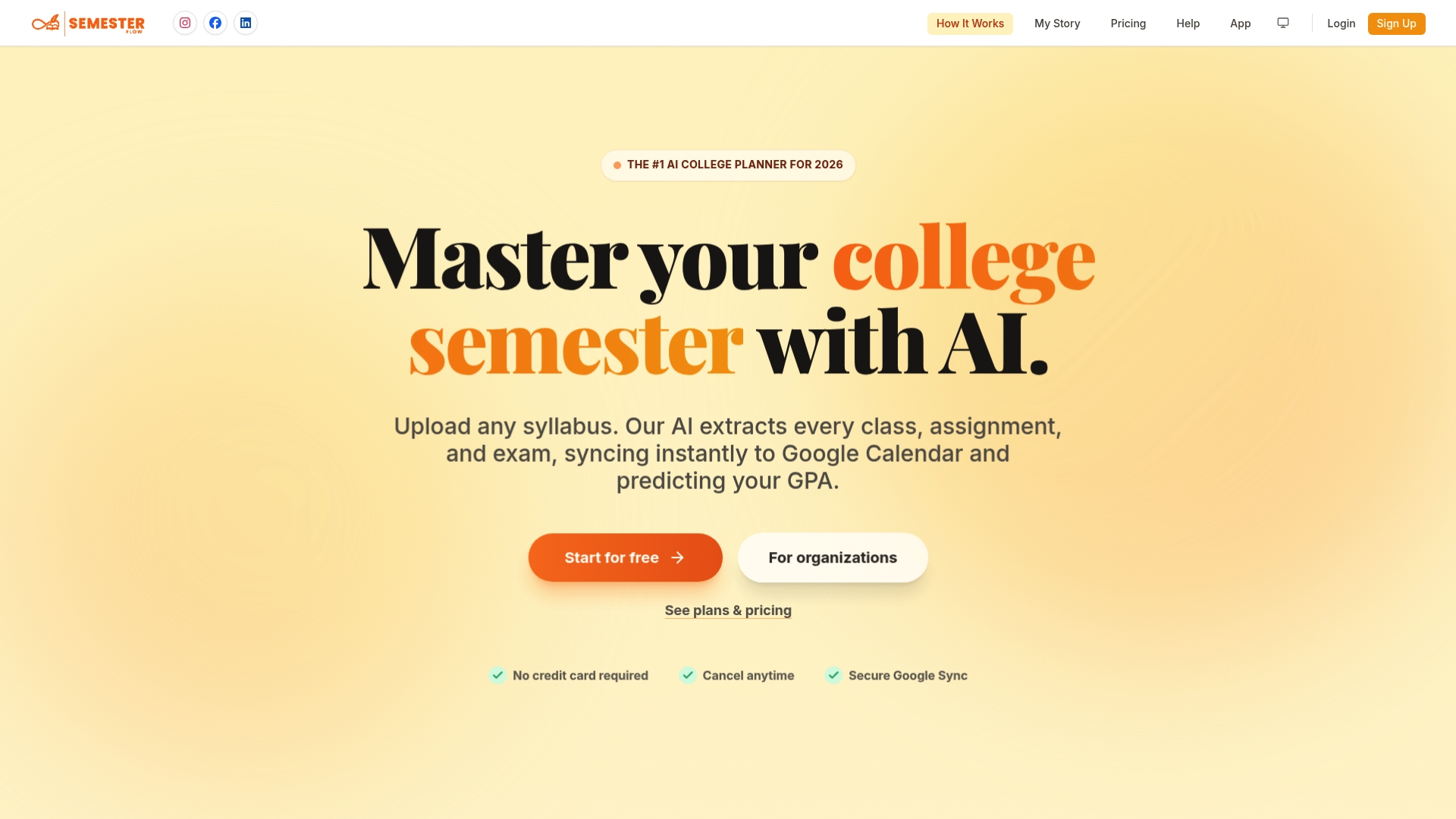
If typing deadlines from a dozen syllabi into Google Calendar by hand sounds like the part of the semester you'd rather skip, this is the kind of problem the tool was built to remove.
- Check the pricing page for the Pro plan at $7.99 per month, the Parent plan at $15 per month, or the Free Trial at no cost.
- Visit the Semester Flow landing page to see how syllabus parsing and calendar sync work before you commit.
Even with automated sync, it's worth a quick habit: check your LMS directly whenever a deadline really matters, since it remains the official record your professor updates first.
FAQ
How do I put assignments into Google Calendar?
You can add assignments manually as tasks or events, subscribe to your LMS calendar feed if your school offers one, or use an automated syllabus parser to extract dates for you. For most students, subscribing to the LMS feed is the fastest way to get everything in at once.
Is there a way to transfer Canvas assignments to Google Calendar?
Yes. Canvas provides an iCal calendar feed you can copy from its calendar settings and add to Google Calendar through Other calendars → From URL. The feed is read-only and updates can take up to 24 hours to appear.
How do I get my tasks to show up in Google Calendar?
Tasks appear on the calendar automatically once you give them a date, whether you create them from the Tasks side panel or directly on the calendar grid. A task without a specific time will show a reminder at 9 AM on its due date by default, according to Google's Tasks documentation.
Can I import tasks to Google Calendar?
You can import an .ics file through Calendar's Settings under Import & export, or add a live feed URL through Other calendars → From URL. Both methods work for LMS feeds and for many third-party task apps that generate a calendar export link.
Sources
- How do I subscribe to the Calendar feed using Google Calendar? - Instructure Community
- Create & manage tasks in Google Calendar - Computer
- Create a Google Calendar Link for All of Your Course Assignments - Info Center