

Hybrid automation, deterministic rules for predictable files paired with AI classification for messy content, gives you the most reliable path to a clean, self-maintaining file system. Done right, it cuts the hours you lose hunting for documents, stops files from vanishing into the wrong folder, and stays safe because every action runs through a preview before anything actually moves. The rest of this guide walks through how to set that up, what to evaluate before you commit to a tool, and where the process still trips people up.
TL;DR:
- Hybrid automation combines rules for predictable files with AI for unstructured content to ensure reliability and prevent misfiling.
- Use preview, undo, and audit logs to mitigate risks, especially when handling sensitive documents or automating destructive actions like deduplication.
- Start automation gradually by applying deterministic rules first, then layer in AI classification with human review thresholds to verify accuracy.
- Cloud connectors and CLI tools each serve different skill levels and failure modes, requiring ongoing maintenance to avoid silent breakdowns.
- For students, tools like Semesterflow automate syllabus parsing, deadline tracking, and document organization while emphasizing security and staged implementation.
Table of Contents
- What Is Automatic File Organization, and Why Go Hybrid?
- Rules, CLI Tools, Cloud Connectors, or AI? How the Approaches Actually Differ
- How Do You Set Up Automatic File Organization Safely?
- Workflow Patterns Worth Copying
- How Semesterflow Applies This to Student Document Organization
- Security and Privacy Considerations in Automated File Handling
- What I'd Actually Automate First (and What I'd Leave Alone)
- Try Semesterflow for Automated Academic Document Organization
- Sources
- FAQ
What Is Automatic File Organization, and Why Go Hybrid?
Automatic file organization means software watches specific locations, applies rules or AI models to figure out what a file is, and then moves, renames, or tags it without you touching it. That covers watched folders, pattern matching on names or extensions, AI-driven content classification, routing to the right destination, automatic renaming, and deduplication.
Rules alone break the moment a file doesn't match the pattern you wrote, but you can learn how to combine them effectively in AI productivity workflows that save time. AI alone can misfile something with real consequences, a tax document landing in the wrong client folder isn't just a minor inconvenience. That's why practitioners increasingly pair the two: rules for predictable format, AI for the ambiguous rest. Three things make that pairing trustworthy in practice:
- Previews or dry runs that show you the plan before any file moves
- Confidence scores on AI decisions, so low-confidence matches route to a human review queue instead of running blind
- Audit logs that record every automated action so you can trace what happened and why
The upside is real: less manual sorting, fewer lost files, faster retrieval. The limit is just as real: automation only works as well as the rules and training behind it, and it still needs a human checking the edge cases.
Rules, CLI Tools, Cloud Connectors, or AI? How the Approaches Actually Differ
Four technology classes cover almost every automatic file organization setup, and each one fails in a different, predictable way.
Rule-based automation matches filenames, extensions, or folder locations against conditions you define, then moves or renames files that match. It's deterministic: the same input always produces the same output, which makes it ideal for standardized files like weekly reports or camera exports. Its failure mode is rigidity. Anything that doesn't fit the pattern gets skipped or, worse, misfiled by an overly broad rule.
CLI and daemon tools run in the background, watching folders and applying scripted logic. Tools like organize-tool support regex filters, remote locations such as FTP and S3, and simulate modes that show you exactly what would happen before it happens. foldr takes a similar watcher approach, adding preview mode, full undo history, and SHA-256 deduplication. These suit power users and server environments comfortable with configuration files, and they fail mainly through operator error, misconfigured filters that quietly do the wrong thing for weeks before anyone notices.
Cloud and integration platforms connect apps and storage locations so files trigger actions across systems, Google Drive, S3, FTP, all reacting to the same event. Zapier's file and folder automations exemplify this pattern. They scale well across teams and shared drives but require ongoing connector maintenance; when an API changes or a permission lapses, the whole chain stalls silently.
AI classification reads content, not just filenames, extracting metadata and sorting genuinely unstructured material. It's the only approach suited to scanned invoices or mixed correspondence, but it demands review thresholds and undo, since misclassification here carries real cost.
Pro Tip: Never run AI classification as the only gate on financial or legal documents. Route anything below your confidence threshold to a manual review queue rather than letting the model decide alone.
Most durable setups mix all four: rules catch the obvious portion, AI handles the rest, and a CLI or cloud layer ties the watched locations together.
How Do You Set Up Automatic File Organization Safely?
Before picking a tool, run it against this checklist:
- Does it offer preview or dry-run mode before any file moves?
- Can every action be undone, and is there a visible audit log?
- Does it read file contents (OCR, metadata extraction), or only filenames?
- What connectors does it support, local drive, Google Drive, S3, FTP?
- Is processing local-first, or does content leave your device for classification?
- Does deduplication require explicit confirmation, or does it run automatically?
- How does pricing scale as file volume or user count grows?
Once you've picked a tool, roll it out in stages rather than pointing it at your whole drive on day one:
- Start with a sandboxed watched folder, something low-stakes like a downloads directory.
- Apply deterministic rules first and let them run for a week before adding anything smarter.
- Layer in AI classification behind a review queue so low-confidence matches wait for your approval.
- Expand scope gradually, adding folders and enabling scheduled or event-driven runs only after the first stage proves stable.
During any trial, ask vendors directly whether dry-run output matches what actually executes, and how far back the undo history reaches. Preview and reversible operations are the trust signals that let automation scale safely, tools that skip them are asking you to trust a black box with your files.
Red flags: no simulate mode, no visible log of past actions, deduplication that runs without confirmation. If you hit any of these, roll back to manual sorting for that folder until you find a tool that clears the checklist.
Workflow Patterns Worth Copying
A few patterns show up often enough across setups that they're worth adapting directly.
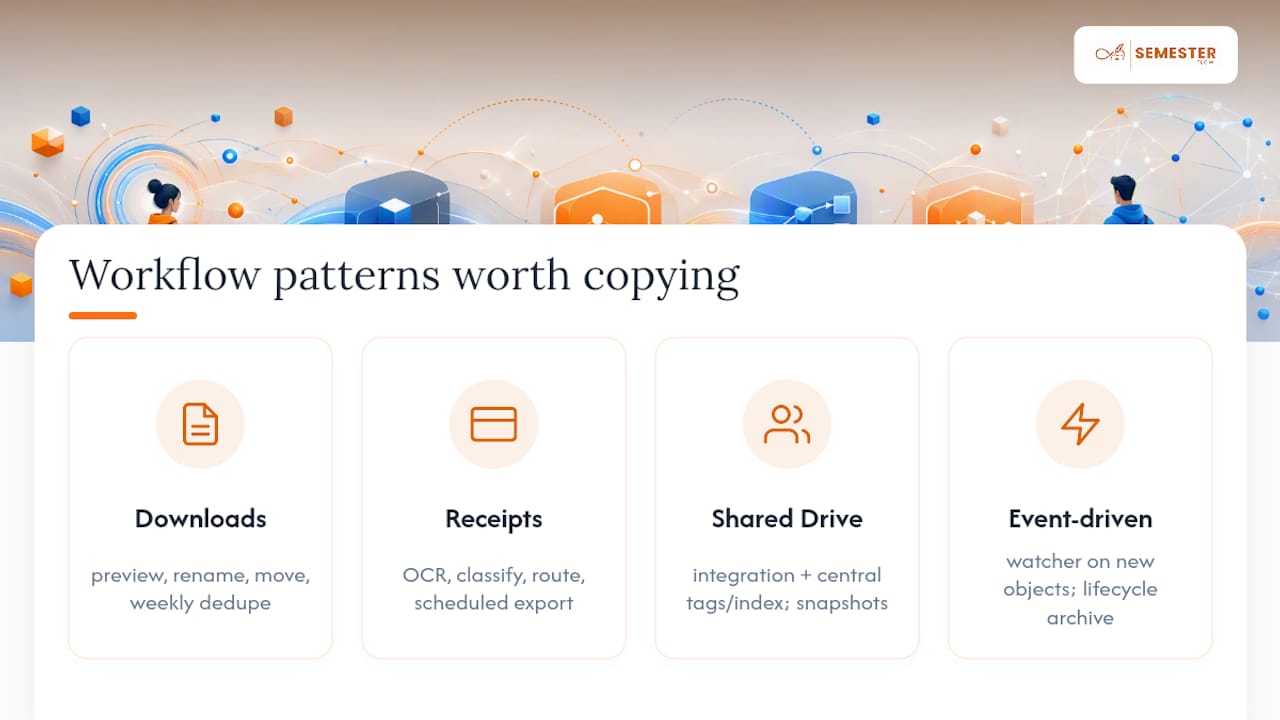
Downloads cleanup: preview the pending changes, rename files by date or source, move them into category folders, then run deduplication on a weekly schedule rather than continuously.
Receipts and invoices pipeline: OCR extracts the text, classification tags the document type and vendor, routing sends it to the right expense folder, and a scheduled export archives everything for tax season.
Shared-drive consolidation: instead of forcing every team member into one rigid folder tree, connect the drive through an integration platform and layer a centralized tagging and indexing system on top. Local snapshots back up the index in case the connector drops.
Server or S3 event-driven pattern: a watcher reacts to new-object events instead of running on a schedule, which avoids the pileup you get between cron runs, then lifecycle rules age out or archive old files with backups intact.
Across every pattern, the hygiene habits stay the same: keep backups before enabling anything destructive, run new rules in dry-run first, roll out changes in stages, and rehearse an undo on throwaway data so you know it actually works before you need it for real.
How Semesterflow Applies This to Student Document Organization
Semesterflow runs a version of this same hybrid logic for a specific, high-stakes case: college workloads. Upload a syllabus and the AI extracts class schedules, assignment due dates, and exam windows, then converts that structured data straight into a synced calendar instead of leaving it buried in a PDF.
Documents sync to Google Drive automatically, so lecture notes, syllabi, and assignments land in an organized structure without manual filing. That document layer connects directly to features like per-class grade profiles and real-time GPA tracking, so an organized file isn't just filed, it feeds into the alerts that flag a slipping grade before finals. Details on how data is handled live on the security page for anyone who wants to check before uploading a semester's worth of coursework.
Security and Privacy Considerations in Automated File Handling
Any tool that reads and moves your files needs access to their contents, which is exactly what makes this category worth scrutinizing before you grant it broad permissions.
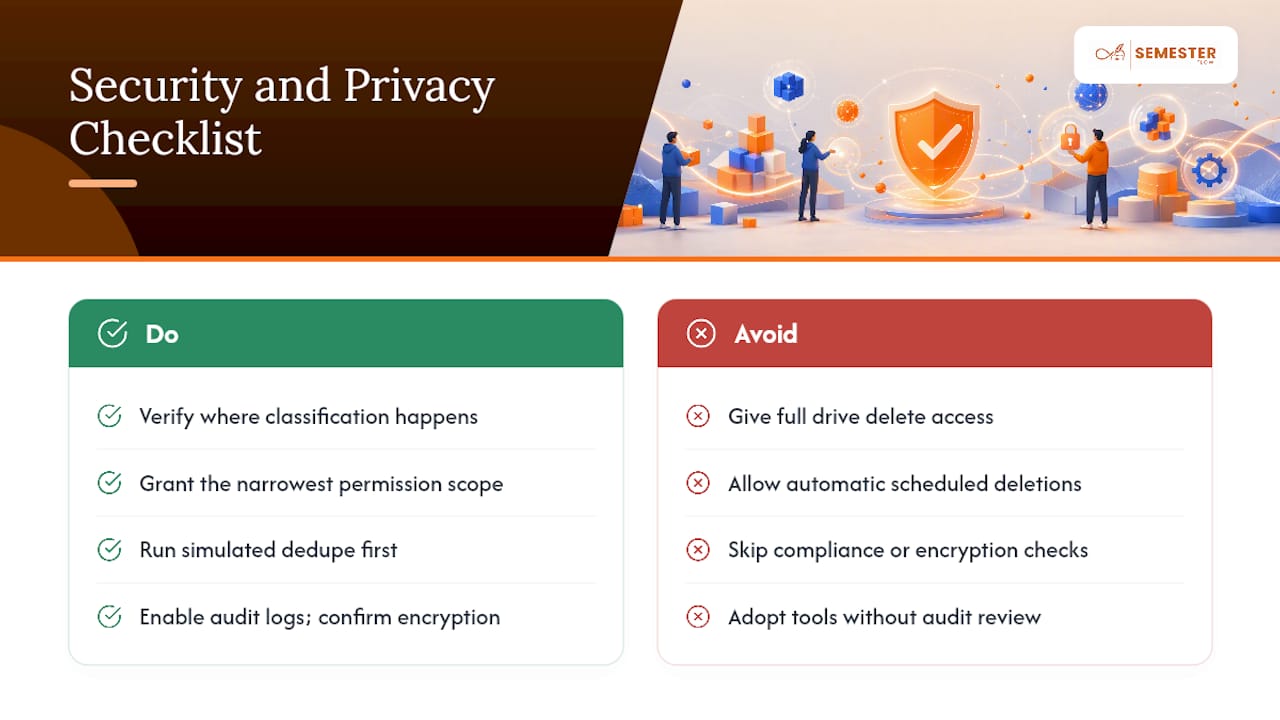
Start with where classification actually happens. Local-first processing keeps content on your device; cloud-based AI classification means your files, or at least extracted text and metadata, travel to a third-party server. Neither is automatically wrong, but you should know which one you're using, especially for anything containing financial, medical, or legal information.
Permission scope matters as much as processing location. A tool that needs read access to a downloads folder is a different risk profile than one requesting full drive access with delete permissions. Grant the narrowest scope that gets the job done, and expand it only as trust in the tool builds.
Deduplication deserves its own caution here because it's the one operation that destroys data if it goes wrong. Best practice is to always run a simulated pass first and require explicit confirmation before any destructive dedupe action executes, never let a tool delete duplicates automatically on a schedule without a human checking the plan.
Audit logs double as a security control, not just an operational one: if an automation misfires or a connector gets compromised, the log is how you trace what moved and reverse it. Before adopting any tool, confirm encryption in transit and at rest, check whether it's compliant with standards relevant to your data (FERPA for education records, HIPAA for health data), and read what happens to your content if you cancel the subscription.
What I'd Actually Automate First (and What I'd Leave Alone)
Rules-first, AI-assisted is the right default for almost everyone. Power users should push automation aggressively into server logs, downloads, and shared drives, anywhere volume is high and stakes are low. Casual users should start smaller: one watched folder, rules only, for a month before adding AI classification at all. Run a full audit of what actually moved quarterly. Catching a bad rule after three months beats catching it after three years of misfiled files.
— Haden
Try Semesterflow for Automated Academic Document Organization
Everything in this guide about safe, hybrid automation applies directly to the one place students lose the most time: managing a semester's worth of syllabi, assignments, and deadlines by hand. Semesterflow applies that same logic specifically to coursework, parsing a syllabus once and turning it into a synced calendar and an organized Drive folder, no manual filing required.

If you're managing academic workloads, you can start with a free tier on the Semesterflow landing page to explore syllabus parsing and document sync features. Check the grade projection feature to see how organized documents feed into forecasts for your final grade, then sign up for a trial when you're ready to stop tracking deadlines manually.
Sources
- Zapier — File and folder automations
- Fast
- organize-tool on PyPI — The file management automation tool
- foldr — Intelligent file automation CLI (tool writeup)
- Sortio — AI file organizer (product page / feature summary)
FAQ
What Are the Four Types of File Organization?
The four common approaches are hierarchical folder structures, tag or metadata-based systems, chronological organization by date, and content-based classification using AI to sort by what a file actually contains.
Is There an AI That Can Organize My Files?
Yes. AI-powered tools can read file contents, extract metadata, and sort documents automatically, and the safest versions pair that AI with preview mode and undo so nothing moves without your review, as seen in tools like Sortio.
What Is the Best Program to Organize Files?
There's no single best option; it depends on whether you need deterministic rules for standardized files, a CLI tool for scriptable server automation, a cloud connector for cross-app workflows, or AI classification for unstructured content. For students specifically, Semesterflow organizes syllabi, assignments, and coursework documents automatically alongside deadline tracking.
What Is the Best File Organizer for Documents Like Receipts or Invoices?
The best setup pairs OCR-based content reading with AI classification and rule-based routing, so scanned receipts get tagged by vendor and date, then filed automatically. Confirm any tool you choose offers preview mode before it processes financial documents.
Do I Need Technical Skills to Automate File Organization?
Not necessarily. Cloud connector platforms and consumer AI organizers use plain-English rule builders that need no coding, while CLI tools like organize-tool require comfort with configuration files and command-line use.