
Yes, you can move your Canvas assignments to calendar apps like Google Calendar or Outlook by subscribing to Canvas's Calendar Feed, a live .ics link that pulls in due dates automatically. The catch: it's view-only, updates can lag up to 24 hours, and you'll still check Canvas itself for submission status. Set it up once from a desktop browser and you're done.
TL;DR:
- Subscribing to Canvas's live calendar feed updates due dates within 24 hours, but cannot reflect real-time changes or submission status from the calendar apps.
- The process to sync with Google Calendar takes about five minutes and requires pasting the correct .ics link into the URL subscription feature.
- Outlook's calendar subscription process is similar but may face issues if the feed URL is incorrect or if trying to add it on mobile devices, which often do not support external subscriptions.
- Canvas's calendar feed is limited to upcoming and past due dates, with no capability to submit or mark assignments as complete, and updates are delayed by up to a day.
- Using calendar management tools like Semester Flow can provide more accurate deadline tracking and grade monitoring by integrating syllabus details directly.
Table of Contents
- How to sync your Canvas calendar to Google Calendar
- How to add the Canvas feed to Outlook
- Why assignments don't show up or update on time
- Getting the most out of your synced calendar
- When a calendar feed is enough, and when it isn't
- Try Semester Flow to turn your syllabus into a synced schedule
- Sources
How to sync your Canvas calendar to Google Calendar
Google Calendar makes this a five-minute job once you know where the buttons live. Here's the exact path.
- Log into Canvas on a desktop browser, click Calendar in the left navigation, then find the Calendar Feed link (usually in the bottom right corner or under a gear icon).
- Copy the .ics URL Canvas gives you. Do not copy the address bar's URL. That's a different link and won't work.
- Open Google Calendar on desktop, look for Other calendars in the left sidebar, click the plus sign, and choose From URL.
- Paste the feed link and click Add calendar.
- Rename the new calendar to something you'll recognize, assign it a color, and confirm the checkbox next to it is ticked so it shows in your view.
Subscribing this way keeps the calendar live, unlike importing an .ics file, which just drops a frozen snapshot into your account and never updates again. Give it up to a day before assuming something's wrong.
If nothing shows up, run through this checklist: confirm you pasted the actual Calendar Feed URL and not a copy of the browser tab, check that you're logged into the Google account you meant to use, and make sure the courses you want are actually visible in your Canvas calendar settings. Hidden courses don't make it into the feed.
Pro Tip: Name the calendar something specific, like "Canvas — Fall 2026," and set a custom notification (a day before, an hour before, whatever fits your habits) so due dates don't blend into the rest of your schedule.
How to add the Canvas feed to Outlook
Outlook's process mirrors Google's, but the menu labels differ enough to trip people up.
- Go back to Canvas, open Calendar, and copy the .ics link from Calendar Feed again (you can reuse the same one from the Google setup).
- In Outlook on the web or desktop, open Calendar, click Add calendar, then choose Subscribe from web (web version) or From Internet (desktop Outlook).
- Paste the feed URL into the box and confirm.
- Give the calendar a name and pick a color so it's easy to spot next to your personal events.
Once added, university IT guides confirm this gives you view-only access, matching what Google Calendar offers. You can see due dates and events, but you can't edit or submit anything from inside Outlook.
One limitation worth knowing upfront: the Outlook mobile app generally can't add an external calendar subscription on its own. Do the initial setup on a laptop or through the Outlook web interface, and the subscription will then show up automatically on your phone once your accounts sync.

If the calendar refuses to appear, paste the feed URL directly into a browser tab first. It should either prompt a download or display readable calendar text. If it does neither, you likely copied the wrong link, or you're signed into an Outlook account that doesn't match the one you used to subscribe.
Why assignments don't show up or update on time
Canvas's feed is a one-way street. You can see due dates in Google or Outlook, but you can't submit work, mark something complete, or edit an assignment from either calendar app. Canvas stays the only place that actually processes your coursework.
Refresh timing catches a lot of students off guard. Google and Outlook decide when to check the feed for changes, not Canvas, so updates can take up to a day to show up on your end. If a professor moves a deadline the night before it's due, don't count on your calendar app catching it in time.
There are also hard limits on what the feed carries:
- Up to 366 days into the future and 30 days into the past
- There is a cap on the total number of items per feed, generally around a thousand
- No "To Do" items, and no submission status of any kind
If assignments seem to be missing or frozen in time, run through this short list before panicking: confirm the link you used ends in .ics, delete any old imported calendar you may have created by accident, check that the course calendar is actually toggled on inside Canvas, and try re-adding the feed if you just joined a new class mid semester. If none of that works, contact your school's IT help desk with the feed URL (mask the token if you're pasting it anywhere public), a screenshot of the Calendar Feed dialog, and the exact date you set it up.
Getting the most out of your synced calendar
A subscribed Canvas feed handles the basics, but a little structure turns it from clutter into something genuinely useful.
- Create separate colors or sub-calendars for each course so you can toggle a class off during a light week without losing everything else.
- Block out your own study and prep time manually. The feed only carries due dates, not the work you need to do before them.
- Re-check your Canvas calendar visibility whenever you add a new course mid-semester. New classes don't always show up in the feed automatically.
- Treat the calendar as a deadline tracker, not a full academic dashboard. It won't tell you your grade trend or flag a class you're falling behind in.
Pro Tip: If you're juggling five or six classes, a single unified color scheme (one shade per course) does more for your sanity than any app feature ever will.
For students who want more than due dates, an AI academic planner that reads your syllabus directly and tracks grade trends alongside deadlines fills the gaps a plain calendar feed leaves open.
When a calendar feed is enough, and when it isn't
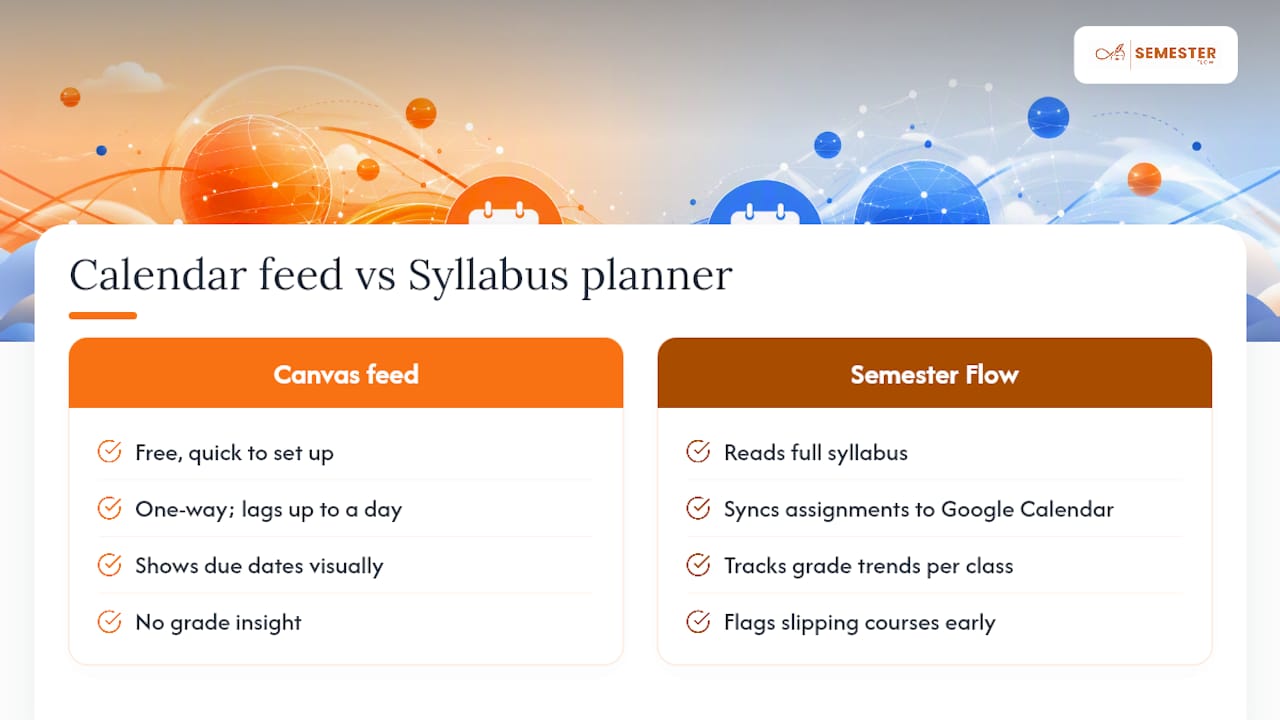
A subscribed Canvas feed is free, quick to set up, and fine for students who mainly need a visual reminder of what's due and when. Its ceiling is real, though: it's one-way, it lags by up to a day, and it has no idea whether you're passing your classes or not.
That's the gap Semester Flow was built around. Instead of relying on a static feed, it reads your actual syllabus, pulls out every assignment and exam date, and syncs that directly to your Google Calendar. It also tracks your grade trends per class and flags courses where you're slipping before it becomes a crisis, something no calendar subscription will ever do on its own.
If you've missed a deadline because your calendar didn't refresh in time, or you've wondered how a B+ average actually translates to your final grade, that's the moment a syllabus-aware planner starts pulling real weight.
— Haden
Try Semester Flow to turn your syllabus into a synced schedule
If you're tired of manually double-checking due dates against a calendar that updates on its own schedule, Semester Flow skips the feed entirely. Upload your syllabus, and it extracts every assignment, quiz, and exam date, then syncs the whole thing straight to your Google Calendar automatically.
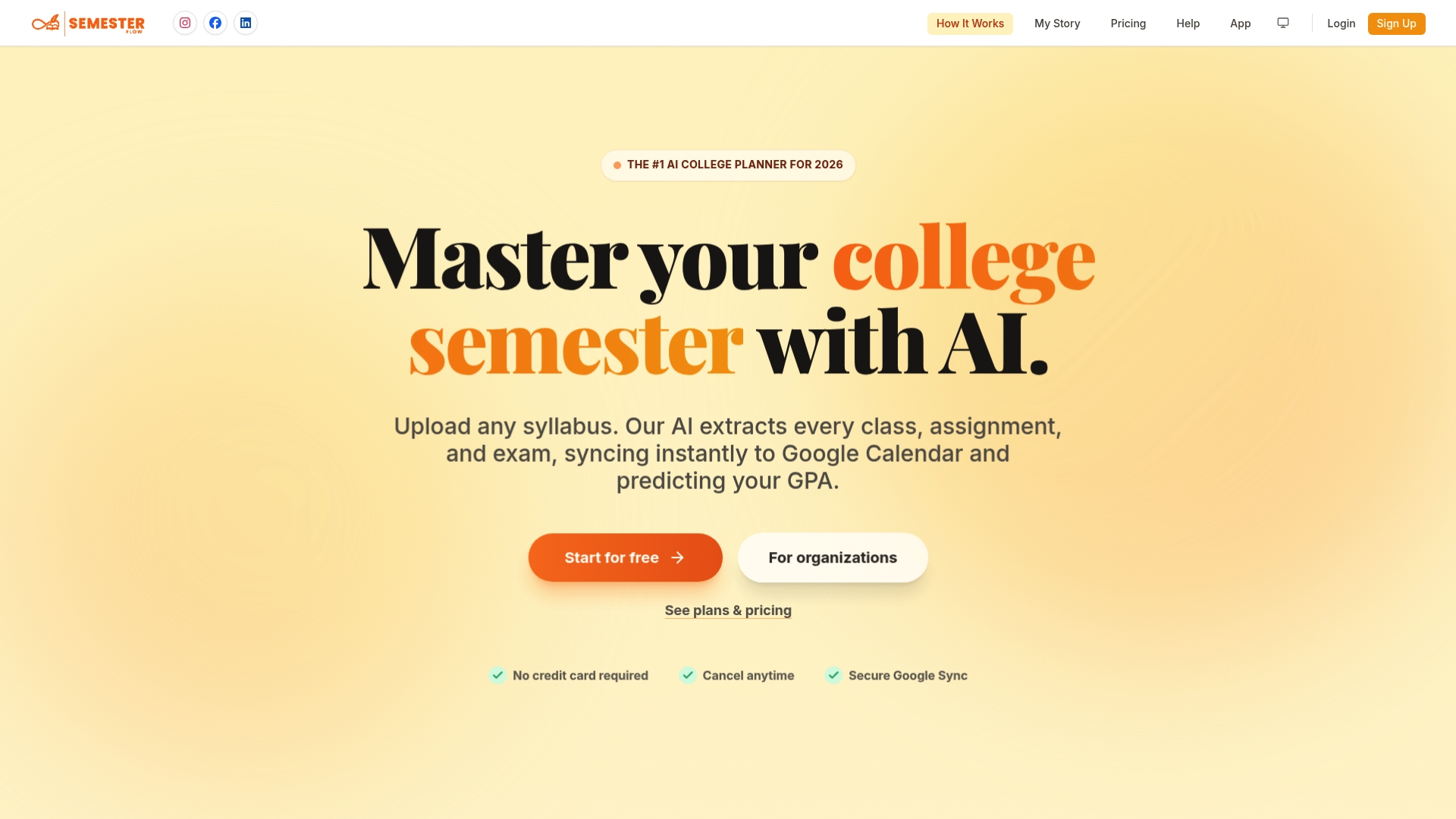
Beyond scheduling, it tracks your GPA in real time, projects what you need on remaining assignments to hit your grade goals, and keeps your course documents organized in Google Drive. Students juggling five or more classes tend to get the most out of it, especially once midterms hit and deadlines start stacking up. If you'd rather not build your own troubleshooting routine every semester, visit the Semester Flow landing page and try the free tier, or check pricing plans if you're ready to go further. Students comparing dedicated planning tools across demanding programs may also find apps like MedSchoolPilot worth a look for iOS specifically.