
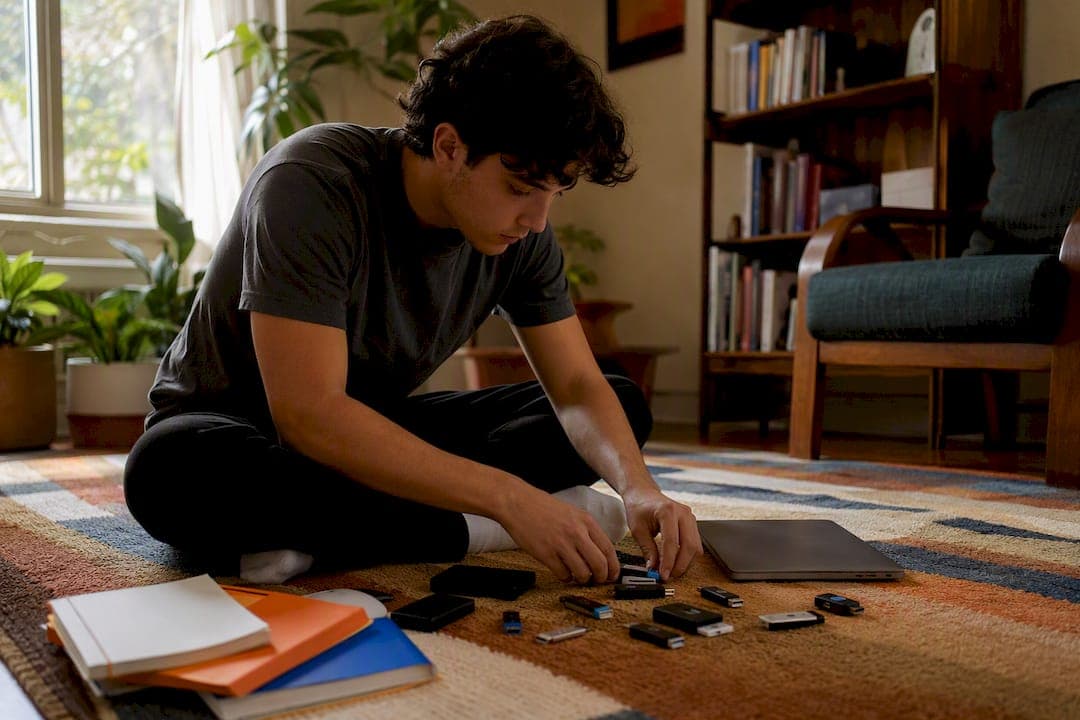
Google Drive is the right cloud workspace for most students, and you don't need to overthink it. Sign in, turn on offline access, and build one folder before your next class. That's the whole starting move.
Here's your five-minute setup:
- Sign in at drive.google.com with either your personal Google account or your school's Workspace account.
- Confirm which account type you're using, since school accounts often come with extra storage.
- Turn on offline access in Settings so a dead Wi-Fi connection doesn't cost you an assignment.
- Set your sharing default to "restricted" instead of "anyone with the link."
- Create one folder right now:
01_CurrentSemester.
Everything else in this guide builds on those five moves.
Key Takeaways
A repeatable weekly filing habit, conservative sharing defaults, and offline access set up in advance are what actually keep a student's Google Drive usable all semester.
| Point | Details |
|---|---|
| Set sharing defaults first | Default to specific-person sharing instead of "anyone with the link" to avoid exposing grades or drafts. |
| Build one folder structure | Use identical subfolders per course and reverse-date filenames so everything sorts chronologically. |
| Enable offline access early | Toggle Offline in Drive settings before you need it, not during a Wi-Fi outage the night before a deadline. |
| Do a weekly reset | Spend ten minutes archiving finished work and renaming rushed files every week rather than letting clutter build. |
| Automate the filing with Semesterflow | Semesterflow parses uploaded syllabi and auto-organizes Drive folders while syncing deadlines to Google Calendar. |
Table of Contents
- How Do You Set Up Google Drive for School?
- How Much Storage Do Student Google Drive Accounts Get?
- Sharing and Permissions: Don't Let Your Homework Leak
- A Practical Organization System You Can Set Up in 30 Minutes
- Working Without Wi-Fi: Offline Access That Actually Works
- Group Projects Without the Chaos
- Quick Wins: Search Tricks and Shortcuts Worth Learning
- How Semesterflow Keeps Your Drive Organized Automatically
- Backups: What Happens After You Hit Delete
- Is Google Drive Actually Safe for Student Work?
- Accessibility Features That Make Drive Work for Every Student
- Making Gmail, Calendar, and Keep Work With Drive
- Let Semesterflow Handle the Filing While You Handle the Coursework
- Sources
How Do You Set Up Google Drive for School?
Getting Drive working across your phone, laptop, and the library computer takes about ten minutes, and the setup differs slightly depending on which account you're using.
- Sign in with the right account. Use your personal Gmail for general use, or your school-issued Workspace for Education account if your college assigned one. School accounts often unlock more storage and integrate directly with Google Classroom.
- Install Drive for Desktop on your laptop. This syncs files locally so you can drag a PDF into a folder on your desktop and have it appear in Drive automatically, according to Google's own setup documentation. Use drive.google.com in a browser instead if you're on a shared or public computer.
- Add the mobile app for quick captures. The Drive app on your phone scans handwritten notes or whiteboards directly into PDF and uploads them on the spot, which beats emailing yourself a blurry photo.
- Check which account owns which files. Personal and school accounts don't automatically share storage or files, so know which one you're working in before you start a project.
How Much Storage Do Student Google Drive Accounts Get?
Storage runs out faster than most students expect, especially once video projects, scanned textbooks, and four years of lecture slides pile up.
A personal Google account shares 15 GB across Gmail, Photos, and Drive combined, which sounds like a lot until a single semester of scanned readings eats through a third of it. School-issued Workspace for Education accounts work differently: storage is pooled at the institution level, and Google's Education Fundamentals edition bundles Drive with Classroom and Meet, with the school managing quota centrally rather than capping each student individually.
Statistic Callout: Schools using Education Fundamentals often extend students more pooled storage than they'd get on a free personal account, which means checking with your school's IT department before paying for an upgrade is worth the five minutes it takes.
If you're on a personal account and running low, try this before reaching for your wallet:
- Delete large video files after you've extracted the notes or clips you need.
- Compress scanned PDFs instead of keeping raw, uncompressed image files.
- Empty your trash folder. Deleted files sit there counting against your quota until you clear them.
- Only then consider a Google One upgrade if your school doesn't already cover you.
Sharing and Permissions: Don't Let Your Homework Leak
The fastest way to accidentally expose a graded paper, a group project draft, or a professor's feedback is sharing it too broadly without thinking about who actually needs access.
Drive gives you three permission levels: Viewer, Commenter, and Editor. Default to Viewer unless someone specifically needs to edit. Commenter is the safe middle ground for peer review and feedback, since it lets classmates leave notes without touching your actual text.
The riskiest setting most students use without realizing it is "Anyone at [School] with the link." That phrase sounds contained, but it can expose a file to your entire university, not just your project group. School district guidance from SFUSD recommends sharing to specific email addresses whenever there's any doubt, rather than relying on a link that anyone in a large institution could stumble onto.
A few habits that actually protect you:
- Share with specific people by email rather than generating a shareable link when the file contains grades, personal reflections, or anything you wouldn't want a stranger reading.
- Set expiration dates on shared access for group projects, so a classmate's edit rights don't linger for years after the class ends.
- Transfer ownership of a shared group document to whoever will need it longest, usually the student staying enrolled the following semester.
- Periodically audit your "Shared" tab and revoke access no one uses anymore.
Pro Tip: Once a month, open Drive's "Shared with me" and "Shared by me" tabs and remove anyone who no longer needs access. It takes five minutes and closes a door you probably forgot was open.
One more thing: your school likely has its own data privacy rules around what can be stored and shared through Drive, so when your syllabus or student handbook says something different from general advice, follow your school's policy first.
A Practical Organization System You Can Set Up in 30 Minutes
Most students don't have a storage problem. They have a findability problem. The fix isn't more storage. It's a folder structure you actually stick to.
Start with three root folders in My Drive:
00_Archivefor anything from a finished semester. Once a class ends, its folder moves here and stops cluttering your active view.01_CurrentSemester(rename it something like01_Fall2026if you want specificity) for everything you're actively using right now._Inboxfor quick saves. Anything you grab in a hurry, a lecture recording, a photo of a whiteboard, a link someone texted you, lands here first and gets filed properly during your weekly reset.
Inside 01_CurrentSemester, give every course an identical subfolder set. Fordham's IT department recommends a uniform structure like 01_Notes, 02_Assignments, 03_Readings, 04_Syllabus for every single class, with numeric prefixes forcing them to sort in the same order every time. Muscle memory kicks in fast when the fourth folder is always the syllabus, no matter which class you're in.
Filenames matter just as much as folders. Use the reverse date format, YYYY-MM-DD, at the start of every filename, followed by the course code. A file named 2026-03-14_BIO201_LabReport.pdf sorts chronologically no matter how many other files sit in that folder, which a name like "Lab Report Final v2" never will.
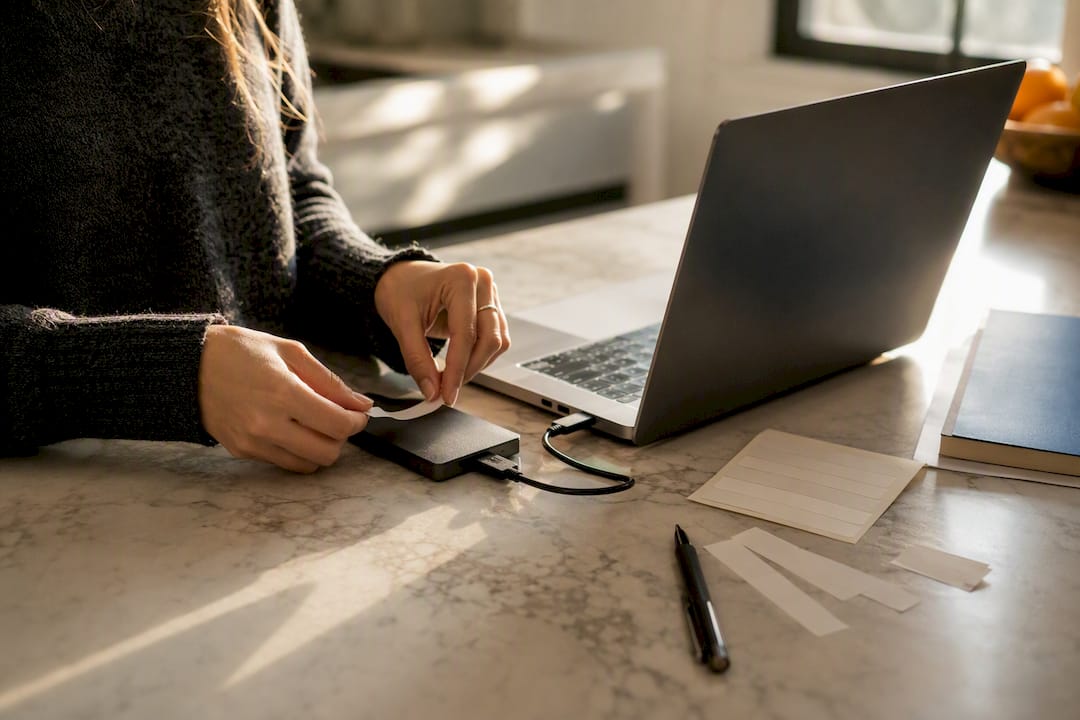
Then commit to a weekly digital reset, ideally the same ten minutes every Sunday. West Oahu's distance learning guide frames this as a short, repeatable habit rather than a big cleanup project: archive anything finished, delete obvious duplicates, rename the three files you were too rushed to label properly during the week, and star the folders you'll need most in the days ahead.
Pro Tip: The exact folder names matter far less than the habit of filing weekly. A messy system you maintain beats a perfect system you abandon after two weeks.
Working Without Wi-Fi: Offline Access That Actually Works
Turn on offline access under Drive Settings, then right-click any file or folder and select "Available offline." Stony Brook's IT department confirms that changes made offline sync automatically once you reconnect.
A few things to know:
- Drive for Desktop syncs a local copy automatically; the browser version only keeps files offline you've explicitly flagged.
- Mobile scans and edits queue up and upload the moment you get signal again.
- If sync stalls, clear your browser cache or sign out and back in. That fixes most stuck-sync issues.
Group Projects Without the Chaos
Real-time collaboration in Docs, Sheets, and Slides works best when one person owns the file and everyone else gets Editor access rather than duplicate copies floating around. For group work, use a Shared drive instead of someone's personal My Drive, so ownership doesn't vanish when that person graduates.
Google Classroom automatically makes individual copies of assignment templates for each student, and submission just means clicking "Turn in" once you're done. If a group draft goes sideways, Version History (File > Version History) lets you restore an earlier draft without starting over.
Quick Wins: Search Tricks and Shortcuts Worth Learning
A handful of small habits save real time over a semester.
- Use search operators like
type:pdforowner:meto cut through clutter fast instead of scrolling. - Star your active course folders so they sit at the top of your sidebar.
- When a classmate shares a folder with you, add a shortcut into your own course folder instead of copying it. This keeps one source of truth and, according to one student-focused organization guide, saves storage since you're not duplicating someone else's files.
- Check "Manage versions" on uploaded files (not just Google Docs) to keep draft history on Word docs and PDFs too.
Statistic Callout: Schools running Education Fundamentals bundle Drive with Classroom and Meet under one login, which is often why a school account behaves differently from a personal one when it comes to shared storage and admin oversight.
How Semesterflow Keeps Your Drive Organized Automatically
Manually filing every syllabus, assignment, and deadline into the right folder takes discipline most semesters don't leave you. Semesterflow's AI Doc Creation & Drive Sync reads an uploaded syllabus, extracts the schedule, and auto-files related documents into structured folders while syncing deadlines to Google Calendar.
The weekly reset habit works best when the filing happens without you having to remember to do it. That's the gap automation closes: not replacing the habit, but removing the friction that makes people skip it.
Backups: What Happens After You Hit Delete
Deleting a file in Drive doesn't destroy it right away. It moves to Trash, where it sits for 30 days before permanent deletion, giving you a real recovery window if you realize a mistake an hour or a week later.
Beyond Trash, Drive keeps version history on Docs, Sheets, and Slides going back well past your last save, so a group project that got overwritten by a teammate's bad edit is almost always recoverable through File > Version History. That's a safety net most students never open until they desperately need it.
For anything outside Google's native formats, uploaded PDFs and Word documents, "Manage versions" under the file's right-click menu keeps prior uploads on hand too, which matters if you replace a draft and later want the earlier one back.
None of this replaces an actual backup strategy, though. If your entire account got locked out, suspended, or compromised, Trash and version history disappear with it. Serious students keep a secondary copy of anything irreplaceable, a thesis, a portfolio, final project files, in a second location: a personal external drive, a second cloud account, or an export to a different service entirely. Google Takeout lets you export your whole Drive as a downloadable archive periodically, which is worth doing once a semester for anything you truly can't afford to lose.
The pattern worth remembering: Trash covers accidental deletion, version history covers bad edits, and only a separate backup covers account-level disaster. Most students only prepare for the first one.
Is Google Drive Actually Safe for Student Work?
Google Drive is safe enough for coursework when you control who sees what, but the platform's security depends heavily on your own settings, not just Google's infrastructure.
The single biggest privacy risk for students isn't hacking. It's oversharing. A file set to "anyone at [school] with the link" can end up visible to thousands of people at a large university, and that setting is one careless click away from a private grade discussion or a rough draft essay being readable by strangers. SFUSD's guidance treats this as the most common mistake students and staff make, and the fix is boring but effective: default to specific-person sharing, and audit access periodically.
School-issued Workspace for Education accounts typically come with admin-level protections your personal account doesn't have, including data loss prevention features schools can configure to flag sensitive information before it gets shared too widely. That's one more reason to use your school account for coursework when one is available, rather than a personal Gmail you also use for everything else in your life.
Two habits worth adopting regardless of which account you use: turn on two-factor authentication, and check "Manage access" on any file containing grades, personal statements, or financial aid documents before you forget it's even shared. Neither takes more than a minute, and both close the gap between "technically private" and "actually private."
Follow whatever data privacy policy your specific school publishes for student accounts. Institutional rules on what can be stored or shared through Drive vary, and they take priority over general advice.
Accessibility Features That Make Drive Work for Every Student
Drive includes several accessibility tools that go beyond basic file storage, and they're worth knowing about whether or not you need them yourself.
Google Docs has a built-in screen reader mode compatible with tools like ChromeVox and VoiceOver, and it supports voice typing for students who find dictation faster or more accessible than typing. Docs also lets you adjust font size, line spacing, and color contrast directly, which helps students with visual processing differences read long documents more comfortably without needing a separate app.
For students who are deaf or hard of hearing, Google Slides and Meet (bundled into Workspace for Education) include automatic captioning during presentations and video calls, generated in real time. That same captioning extends to recorded lecture videos stored in Drive, when the source video includes an audio track Google's system can transcribe.
Keyboard navigation throughout Drive and Docs supports students who can't or prefer not to use a mouse, and every major action, moving files, sharing, commenting, has a keyboard shortcut. Campus IT departments, including resources like Indiana University's Tool Finder page, often maintain specific guidance on configuring these settings for students registered with disability services, so checking with your school's accessibility office is worth doing if you need settings beyond the defaults.
None of these features require a special account tier. They're built into standard Drive and Docs, which means the barrier to using them is usually just knowing they exist.
Making Gmail, Calendar, and Keep Work With Drive
Drive doesn't operate in isolation, and treating it as one piece of a connected system saves real time.
Gmail attachments over a certain size get uploaded to Drive automatically rather than sent as raw email attachments, which means large files you send classmates land in their Drive rather than clogging their inbox. You can also insert a Drive file directly into an email as a link with one click from Gmail's attachment menu, which keeps a single editable version alive instead of spawning five email attachments with slightly different edits.
Google Calendar and Drive connect naturally too: attach a Doc or Sheet directly to a calendar event, so when a study group meeting shows up on your calendar, the shared notes document is one click away instead of buried in a folder you have to hunt for.
Google Keep, the quick-notes app bundled into every Google account, syncs directly with Docs. A quick voice memo or list jotted in Keep during class can be copied straight into a Doc later, which beats losing a good idea because it was trapped in a different app than your actual notes live in.
The point of connecting these tools isn't complexity for its own sake. It's reducing the number of times you have to remember where something is. If your calendar, notes, and files all point back to the same Drive folder structure, you spend less mental energy hunting and more time actually doing the work.
A Student's Note on Why This Actually Matters
The students who stay calm during finals aren't the smartest ones in the room. They're the ones who never lost a file, because they built one small habit early and never had to think about it again.
— Haden
Let Semesterflow Handle the Filing While You Handle the Coursework
A folder system only works if someone keeps feeding it, and most semesters get busy enough that the weekly reset slips. Semesterflow is built to close that gap: upload your syllabus, and it parses the schedule, files related documents into organized Drive folders automatically, and syncs every deadline straight to Google Calendar.
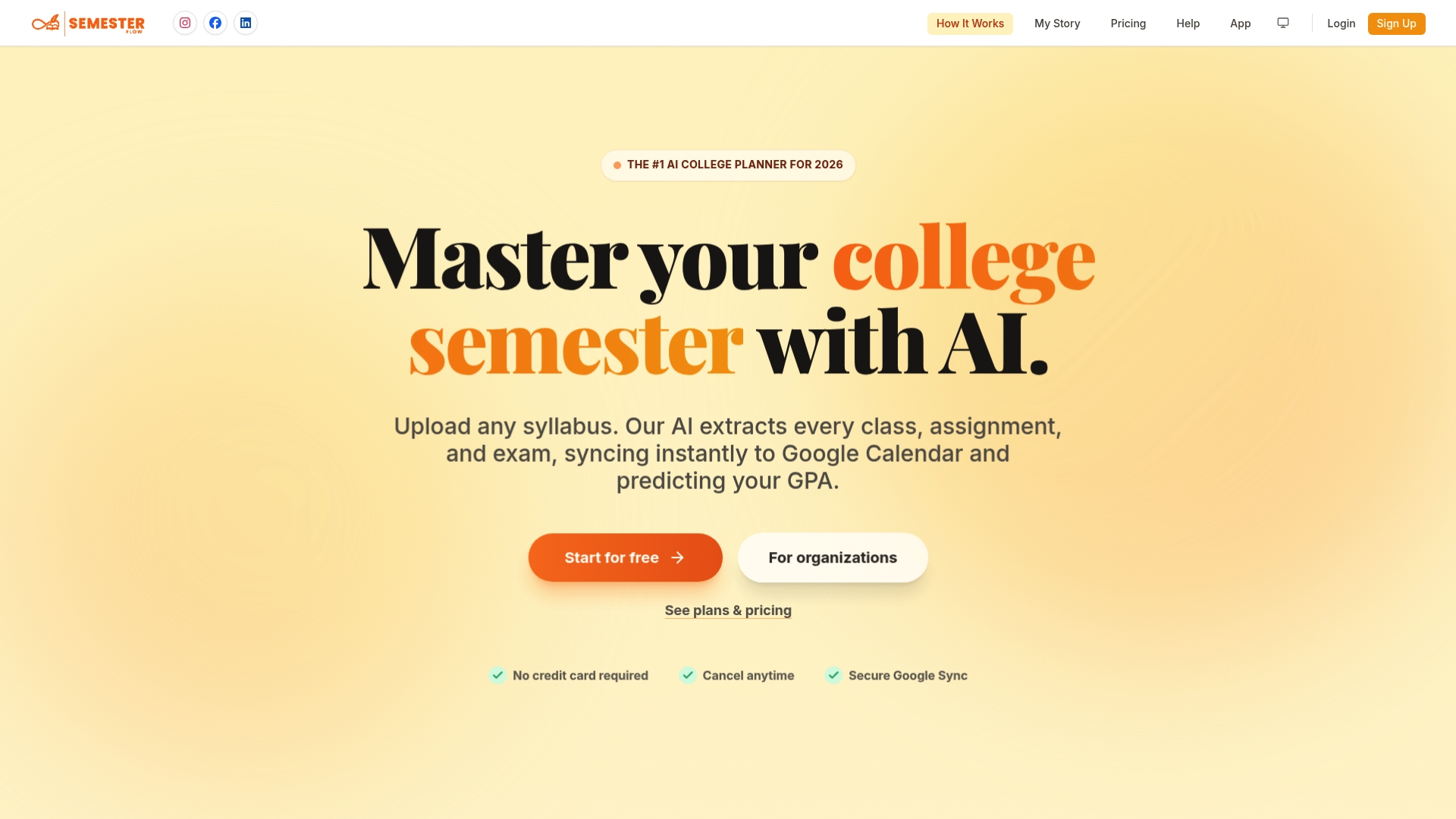
This isn't a replacement for the folder structure or the sharing habits covered above. It's the automation layer that keeps them running when you don't have time to do it manually. Semesterflow also tracks your GPA in real time and flags a slumping grade before it becomes a crisis, through features like grade profiles and grade goal projections that connect directly to the documents already organized in your Drive. For students working on longer writing assignments, pairing this with a version-tracking tool like FinalDraft keeps essay drafts as organized as your course folders.
If you want to see what your semester looks like once the syllabus does the organizing for you, start with Semesterflow and upload your first syllabus to see the schedule build itself.
Sources
- Accessing Google Drive files offline on a mobile device/computer — Stony Brook ITS
- Mastering folder organization in Google Drive — Fordham IT News
- Tips: Access your Google Drive offline — West Oahu Distance Learning
- Google Drive best practices — SFUSD
- Get started with Google Drive — Google Drive Help