

AI calendar planning automates scheduling and rescheduling, drafts a balanced week from your calendar and rules, and protects focus time, but you should treat it as AI-assisted re-planning with human-in-the-loop approvals, not autopilot. Your best next step is a Friday weekly review with an AI agent: map your energy, audit back-to-backs, and approve only a few moves.
TL;DR:
- A weekly review should check energy mismatches, stretches without breaks, misplaced preparation, and whether the schedule includes a deep work block lasting 90 minutes.
- Begin with access that permits reading but not editing; test calendar synchronization with a disposable event, and enable edits only after proposals prove reliable.
- Require approval for exams, classes, interviews, and events owned by others; automate personal study blocks only after several clean weeks, while logging every change.
- Choose a student planner when syllabi and grades shape your schedule; general calendar apps better suit people whose days revolve around meetings.
- Limit prompts to event titles and times, omit attendee names, keep medical visits off shared calendars, and favor tools your institution approves with deletion controls.
Table of Contents
- What can AI calendar planning actually do?
- How do you run an AI-assisted weekly review?
- Which features should an AI calendar or planner have?
- How do you set up an AI planner safely?
- What prompts get reliable AI planning suggestions?
- What privacy risks come with AI calendar planning?
- When should AI make changes automatically?
- How does AI calendar planning work for syllabi, assignments, and exams?
- How do student planners compare with general AI calendar apps?
- How can you use AI calendar insights to improve grades?
- How does AI planning connect with academic platforms and documents?
- Why does AI calendar planning help college students most?
- How do you choose between AI assistance and manual control?
- Where does AI calendar planning fit in a student's workflow?
- How does Semester Flow help students with AI calendar planning?
- FAQ
- Sources
What can AI calendar planning actually do?
Think of an AI planner as a tireless scheduling assistant that reads your calendar, your task list, and your rules, then proposes a better arrangement. It does not know your priorities by magic. It knows what you tell it and what your calendar reveals. Here is what it handles well:
- Auto-scheduling tasks. The planner finds open slots for assignments, reading blocks, or project work and places them around fixed commitments like classes or standing meetings.
- Protecting focus time. You set a rule such as "keep a deep-work block in your schedule," and the planner defends it when new requests arrive.
- Continuous rebalancing. When a meeting moves, the planner can recompute the surrounding schedule instead of leaving you with a broken day.
- Spotting back-to-backs. It flags stretches with no breaks, which is the kind of pattern people miss when they scan one day at a time.
- Drafting a proposed plan. It returns a list of suggested changes for you to review, rather than silently editing your calendar.
There is a real difference between a per-meeting scheduling assistant and a week-shaped planner. A per-meeting tool answers one question: when can these people meet? A week-shaped planner looks at the whole week and asks whether your hardest thinking lands in your best hours, whether prep blocks sit before the meetings they serve, and whether Thursday is quietly overloaded. That wider view is where the gains come from, because most calendar pain is a pattern across days, not a single bad slot.
Energy mapping is the clearest example. If you think best before noon but your calendar fills mornings with status meetings, a week-level analysis can propose swapping them with afternoon admin work. A per-meeting tool would never notice.
Now the limits. AI proposals are not confirmed changes. A good assistant returns a proposed plan that preserves attendees, agendas, and video links, and then waits for you to approve. It cannot see context that lives in your head: a professor who dislikes rescheduled office hours, a teammate who is having a rough week, a deadline you quietly negotiated. It also cannot move events owned by other organizers without their cooperation.

Research on students points to the same nuance. A 2025 study of 102 undergraduates found that 81.2% used AI daily, yet only 12.5% used it for scheduling as of mid-2025. The same study found a clear preference for circadian-aware scheduling, which supports the energy-mapping approach above. It also noted that students feeling generally "overwhelmed" found simple time-based AI scheduling less helpful than students who specifically struggled with time management and chronic exhaustion. In other words, scheduling AI helps most when you aim it at a specific problem.
How do you run an AI-assisted weekly review?
The weekly review is the single habit that makes AI calendar planning pay off. It can surface high-impact moves and keep you in charge. A practical workflow from the Workplace AI Institute pairs a four-question prompt lens for the weekly pass with a monthly recurring-meeting audit, and it recommends limiting accepted moves and drafting short attendee messages only after approval. We adapt that approach here for students and knowledge workers.
The four questions are your lens:
- Which meetings sit in the wrong slot for your energy?
- Where are the back-to-back stretches with no recovery time?
- Which prep blocks are misplaced, such as prep that lands after the thing it prepares for?
- Is there at least one 90-minute deep-work block in the week?
Here is the sequence we recommend, ideally before the start of the coming week:
- Export your upcoming week. Copy next week's events into plain text with day, start time, end time, title, and who owns the event. Include your energy windows (for example, "sharp in the morning, slump in the afternoon") and your hard rules (for example, "no meetings during my protected focus time").
- Paste the four questions and your calendar into your AI tool. Ask it to answer each question and cite the specific events involved. Vague answers mean your input was too thin, so add detail and try again.
- Build an inventory in three buckets. Ask the AI to sort every event into "must keep" (exams, classes, anything with external stakes), "must move" (clear conflicts with your rules), and "dependent" (events that only make sense if another event stays put, like a study session before a quiz).
- Request a change plan. Have the assistant list proposed moves in priority order, each with the reason, the new slot, and the knock-on effects on dependent events.
- Move constrained events first. Start with the events that have the fewest possible slots. Flexible items like personal study blocks go last because they can fill whatever remains.
- Cap accepted changes. Accept only a limited number of moves per run. A short list is easier to verify and far less likely to produce a calendar you no longer recognize.
- Approve, then execute. Apply the approved moves yourself or let the tool apply them. Never let it apply the unapproved ones.
- Draft attendee messages after approval. Ask the AI for two-sentence notes for anyone affected: what is moving, the new time, and a thank-you. Send them yourself.
- Record what changed. Keep a short note of old and new times so you can reverse a move if it backfires.
Pro Tip: Paste your calendar as a plain list and tell the AI to return a table of proposed moves with columns for old time, new time, and reason, so you can scan and reject changes quickly.
Run this loop for a few weeks and you will notice the proposals getting sharper, mostly because your rules get clearer each pass. Once a month, add the recurring-meeting audit described later in this guide. Standing meetings quietly consume more hours than any one-off request, so they deserve their own review.
If you want a student-specific version of this habit, our guide on an evidence-backed weekly review for students walks through a similar routine built around coursework.
Which features should an AI calendar or planner have?
Features matter less than fit, but a few capabilities separate trustworthy planners from risky ones. Use this checklist when you compare options by features, usability, and price.
- Integration and sync scope. Confirm it works with the calendars you actually use, such as Google Calendar, Outlook, and iCal feeds. Two-way sync matters: changes made in the planner should appear in your calendar, and changes you make in your calendar should flow back. Ask whether you can sync multiple calendars, because many people keep school, work, and personal calendars separate.
- Human-in-the-loop approvals. The tool should propose, not impose. Look for a clear review step where you can accept, reject, or edit each suggested move before anything changes.
- Priority rules. You should be able to tell the planner which events are anchors and which are movable. A tool that treats every event as equally flexible will eventually move something it should not.
- Buffer time. Good planners add transition gaps between events so you are not sprinting from one commitment to the next.
- Habit and routine protection. Recurring commitments like workouts, meals, and weekly study blocks should be defended the way meetings are. Otherwise they are the first things squeezed out.
- Automated rescheduling behavior. Find out exactly what happens when a conflict appears. Does the tool silently shift your tasks, ask first, or just flag the clash? Silent shifting feels convenient until it moves the wrong thing.
- Preservation of event details. When a meeting moves, attendees, agendas, notes, and video links should come along intact.
- Data control and governance. Look for opt-out options, data deletion on request, and a plain-language explanation of what is stored and where. For institutions, check for institutional licensing and audit logs showing who changed what.
- Transparency of reasoning. The best assistants say why they suggest a move. If you cannot see the reasoning, you cannot judge it.
- Pricing clarity. Compare free tiers, per-month pricing, and any per-seat or organization pricing. A free plan is often enough to test whether the workflow suits you before you pay.
Two criteria deserve extra weight. First, human-in-the-loop approvals: Automated scheduling can go wrong when a tool acts without asking. Second, data control: a planner reads your entire schedule, which reveals where you live, who you meet, and when you are vulnerable. Treat that access with the seriousness it deserves.
A note on usability. A tool that takes a long time to configure will not survive a busy semester. Prefer planners where you can state your rules in plain language and see results in the first session. If setup is painful, you will abandon the habit regardless of how clever the AI is.
Finally, check how the tool handles events it does not own. Meetings organized by other people are political, not just logistical. The planner should be able to suggest a change but never force one.
How do you set up an AI planner safely?
Setup determines whether you can trust the planner later. Spend time here and you will save yourself a bad week.
- Confirm permission scopes first. When you connect Google Calendar or Outlook, read what access you are granting. Read-only access lets the tool analyze your week. Write access lets it change your week. Start read-only, run a few weekly reviews, and only enable write access once you trust the suggestions.
- Understand two-way sync behavior. Test with a throwaway event. Create it in the planner, confirm it appears in your calendar, then edit it in your calendar and see whether the change returns. Do this before enabling any auto-rescheduling.
- Connect your task sources. Planners work best when they know what needs doing, not just when you are busy. Import assignments, project deadlines, and recurring tasks from wherever you track them. For students, the richest source is the syllabus: our guide on how to extract, verify, and sync syllabus assignments shows how to turn a PDF into dated calendar entries you can check for errors.
- Sync your exam schedule. Exams are anchors that everything else bends around. If yours arrive as a list or a document, see how to sync your exam schedule to Google Calendar with AI and iCal.
- Set hard rules in writing. Examples: no meetings before 9 AM, no scheduled work after 9 PM, lunch protected from noon to 1 PM, one full day per week with no commitments. State each rule as a plain sentence and keep the list short, because too many rules produce an unsolvable calendar.
- Handle time zones deliberately. If you travel, study abroad, or work with remote teammates, tell the planner which time zone governs your day. Check that events display correctly after a zone change, since mismatches cause missed appointments.
- Decide how to treat other organizers' events. Mark events you do not own as "propose only." The assistant may suggest alternatives and draft a polite request, but it should never change them directly.
- Define your energy windows. Be honest. If you are useless before 10 AM, say so. The plan will only be as good as the self-knowledge you feed it.
- Share living and group schedules cautiously. If you coordinate with roommates or teammates, see our walkthrough on coordinating roommate schedules with AI parsing for ways to merge availability without exposing more than necessary.
Finish setup with a dry run. Ask the AI to review a past week you already lived, then compare its proposals with what you wish you had done. If the suggestions look sensible, move on to a live week with read-only access.
What prompts get reliable AI planning suggestions?
Good prompts are specific, structured, and honest about constraints. Copy these templates and replace the bracketed parts with your own details.
Template 1: Energy-pattern prompt. "Here is my calendar for next week: [paste events]. My best focus hours are [window]. My low-energy hours are [window]. Hard rules: [list]. External commitments I cannot move: [list]. Identify which events sit in the wrong energy slot, propose swaps, and explain each suggestion in one sentence."
Template 2: Recurring-meeting audit. Run this monthly. "Here are my recurring meetings: [paste titles, frequency, duration, attendees]. For each one, infer its likely purpose, then recommend keep, halve (shorter or less frequent), replace (with an asynchronous update), or kill. Sort the list from most killable to least killable and give a one-line reason for each."
Template 3: Rescheduling brief. "I need to reschedule [event or group of events]. Preserve all attendees, agendas, and video links. Do not move events marked 'anchor.' Return a list of proposed changes, each marked 'proposed' until I confirm, and then a second list of 'confirmed' changes after I approve."
Here is a repeatable way to use them:
- Start with the energy-pattern prompt during your Friday review.
- Follow with the rescheduling brief to turn approved ideas into a concrete change list.
- Ask the assistant to flag any change that touches an event you do not own.
- Request short attendee messages for approved moves only.
- Once a month, run the recurring-meeting audit and cancel or shorten at least one standing meeting.
A few habits make every prompt better. Paste raw calendar text rather than describing it from memory. Say what you will not compromise on, such as sleep or exam prep. Ask for reasons, not just results, so you can catch bad logic. And ask for a limited number of moves, which keeps the output reviewable.
Pro Tip: End every planning prompt with "List any assumptions you made about my schedule." Wrong assumptions are the most common source of bad suggestions, and this line surfaces them immediately.
Prompts for students can borrow the same structure. Swap meetings for classes, labs, and assignment deadlines, and add a line about grading weight so the assistant knows which work matters most. Research-minded readers may also enjoy agentic analytics workflows for academic research for ideas on structuring multi-step AI tasks, though calendar prompts need far less machinery than data analysis.
One more caution: do not paste more than the task requires. Titles and times are usually enough. Attendee names, private notes, and medical or personal details rarely improve a planning suggestion and do increase your exposure, a point we return to next.
What privacy risks come with AI calendar planning?
A calendar is more revealing than it looks. It shows your routines, relationships, location patterns, and sometimes your health. When you hand that to a generative model, you create privacy risks that are easy to underestimate, especially in academic settings.
Research on generative AI suggests that models can infer sensitive attributes such as gender, race, and health indirectly from linguistic patterns in user dialogues, even without access to official student or health records. The same research notes that universities are expanding their GenAI risk models to address re-identification and misuse, and recommends privacy-by-design and multi-stakeholder governance. For you, the lesson is practical: a few recurring appointments and some casual phrasing can say more than you intended.
Statistic callout: Generative models can infer sensitive attributes, including health, from linguistic patterns in user dialogues, which is why privacy-by-design and multi-stakeholder governance are recommended for academic use.
Mitigations you can apply today:
- Limit what you share. Use generic event titles in prompts, such as "appointment" instead of a named clinic, and leave out attendee names.
- Prefer institution-licensed deployments. When your school provides an approved AI tool with a contract covering data handling, use that instead of a consumer account.
- Insist on opt-out and data deletion. University guidelines for generative AI emphasize informed consent, opt-out and data-deletion options, institutional oversight, and training. Choose tools that offer these, and use them.
- Check whether your data trains the model. Look in settings for a switch that excludes your conversations from training.
- Keep sensitive events off shared calendars. Therapy, medical visits, and legal appointments should live on a private calendar the planner cannot read.
- Review every output. AI can misstate times, invent details, or expose information in a draft message. Read before you send.
- Learn the basics. A short orientation on safe prompting reduces accidental exposure more than any setting.
Responsibility is shared. You review outputs, limit inputs, and report problems. Institutions set policy, monitor usage, and build privacy safeguards into the tools they approve. Students and families weighing AI more broadly may find the perspective in this overview of the dangers of using AI in college applications useful, since the same habits of caution and honesty apply to any high-stakes academic task.
If your school has no policy, ask. A one-line question to your registrar or IT office about approved AI tools and data retention can reveal whether the tool you want is allowed at all.
When should AI make changes automatically?
The short answer: rarely, and only for low-stakes items. A simple policy keeps automation useful without letting it cause damage.
- Sort events into two classes. Low-impact movable events, like a personal study block or a gym session, can be shifted with light oversight. Protected anchors, like exams, interviews, classes with attendance rules, and anything involving other people, require explicit approval for every change.
- Require approval for externally owned events. If someone else organized it, the AI may suggest and draft, but a human must send the request.
- Run propose, approve, execute. The assistant proposes. You approve a limited set. Only then does the change execute. Skipping the middle step is how calendars get quietly wrecked.
- Keep a coordination record. For each change, log the old time, new time, reason, and who was notified. This makes reversals easy and gives you an audit trail if someone asks why a meeting moved.
- Escalate by trust. Begin with proposals only. After several clean weeks, allow automatic moves for the lowest-impact category. Expand slowly, and retreat the moment something goes wrong.
- Measure results. Track time saved on scheduling, the count of back-to-back stretches before and after, and whether your deep-work blocks survive the week. If these do not improve, tighten your rules or reduce automation.
A good test: ask whether you would be comfortable explaining the change to the person it affects. If the answer is no, a human should make that call.
How does AI calendar planning work for syllabi, assignments, and exams?
Academic calendars follow patterns that AI handles well, because the source material is structured and the deadlines are fixed.
Syllabus parsing. You upload a course syllabus, and the AI extracts class meeting times, assignment due dates, exam dates, and grading weights. The result is a set of dated calendar entries you can verify against the original. Always check the output: a misread date is worse than no date.
Assignment tracking. Once deadlines are on your calendar, the planner can work backward. A paper due later in the month can become a research block, an outline, a draft, and a revision scheduled before the deadline. Large assignments stop arriving as surprises.

Exam preparation. Give the assistant your exam dates and the topics covered. It can spread review sessions across the time before the exam, front-load the hardest subjects, and avoid stacking two big exams' prep into one day. Our walkthrough on managing college deadlines with syllabus sync shows a campus-tested version of this routine.
A concrete scenario: you have a midterm in biology on Thursday and a problem set due Friday in statistics. The planner notices that Wednesday evening is free, proposes a review block there, and moves a low-priority reading to the weekend. You approve the changes that make sense and ignore the rest.
How do student planners compare with general AI calendar apps?
General AI calendar apps and student-focused planners solve different problems, and the right choice depends on yours.
| Feature | General AI calendar apps | Student-focused planners |
|---|---|---|
| Primary job | Fit meetings and tasks into open slots | Turn course documents into a semester plan |
| Typical input | Calendar events and to-do lists | Syllabi, grading policies, exam schedules |
| Strength | Flexible scheduling for work and personal life | Deadlines, grade tracking, and course-specific alerts |
| Weakness for students | Does not read syllabi or track grades | Less suited to complex multi-team work meetings |
General apps shine when your calendar is dominated by meetings and you need smart slot-finding, buffer time, and focus protection. They are flexible and often have generous free tiers.
Student-focused tools start from the document that defines a student's life: the syllabus. They extract dates automatically, connect assignments to grades, and can warn you when a course is slipping. They trade breadth for relevance.
Many students use both: a student planner for coursework and a general calendar for everything else. Choose based on where most of your scheduling pain lives, test the free tier, and compare price against the time you will actually save.
How can you use AI calendar insights to improve grades?
A calendar that knows your coursework can do more than remind you. It can show you where you are slipping.
- Identify at-risk courses early. If one course has back-to-back heavy deadlines and a falling grade trend, it deserves extra blocks now, not after the next exam.
- Prioritize by weight. Ask the assistant to rank upcoming tasks by their share of your final grade. A project worth a larger share of the final grade may outrank a quiz, even if the quiz is due sooner.
- Calculate what you need. Given your current grades and the remaining assessments, work out the score needed on the final to hit your target. Seeing the number turns anxiety into a plan.
- Match tasks to energy. Put analytical work in your sharpest hours and routine tasks in low-energy slots.
- Protect recovery. Schedule rest deliberately. The earlier study's finding that students with exhaustion preferred schedules informed by sleep patterns is a reminder that overbooking backfires.
- Review weekly. Compare what you planned with what you did. Adjust estimates, because most people underestimate how long assignments take.
Treat these insights as prompts for your own judgment. The numbers point at problems, but you decide what to do about them.
How does AI planning connect with academic platforms and documents?
Planning improves when your calendar can see your coursework. The common integration points for students are:
- Calendar services. Google Calendar and Outlook are the main hubs. Two-way sync keeps changes consistent across devices.
- Course documents. Syllabi, assignment sheets, and exam schedules usually arrive as PDFs or photos. A planner that reads these directly saves hours of manual entry.
- Cloud storage. Organizing readings, notes, and submissions in a structured folder system, such as Google Drive, keeps files findable at deadline time. Folders named by course and week help.
- Learning management systems. Many schools publish deadlines through a campus portal. Where export or calendar feeds exist, use them, and always compare against the syllabus.
- Shared calendars. Study groups and student organizations can share a read-only calendar so everyone sees the same dates.
Before you connect anything, confirm what the integration can read and write, and whether your school permits it. Fewer, well-understood connections beat a tangle of half-trusted ones.
Why does AI calendar planning help college students most?
College workloads have a particular shape. Several courses issue deadlines independently, grading is weighted differently in each, and the heaviest weeks cluster around midterms and finals. No human tracks all of that reliably in their head.
AI planning helps in four ways. It collects deadlines from every syllabus into one place, so nothing hides in a PDF you forgot to open. It spreads work out, replacing last-minute cramming with steady blocks. It reveals collisions before they happen, such as a paper and an exam landing close together. And it removes administrative drag: copying dates, rebuilding the week after a change, and rewriting plans from scratch.
It also supports wellbeing. When you can see the whole semester, you can plan rest, work shifts, and activities around real constraints. That said, it works best for students with a specific problem, such as missed deadlines or poor time estimates, rather than as a cure for general overwhelm. Pair it with a weekly review and it becomes a habit rather than a gadget.
How do you choose between AI assistance and manual control?
Use a simple decision rule: automate in proportion to how cheap a mistake is.
- Keep manual control for exams, interviews, medical appointments, anything involving other people's time, and any event where a wrong move has real consequences.
- Use AI assistance with approval for rescheduling study blocks, balancing your week, and drafting messages. The AI does the thinking, you make the final call.
- Allow light automation only for trivial, reversible items, and only after the tool has earned your trust.
Best practices for human-in-the-loop work: require a visible proposal before any change, limit accepted moves per run, keep a record of old and new details, and review results weekly. If a tool cannot show its reasoning or lets changes slip through unapproved, treat that as a reason to switch tools or reduce permissions.
Productivity experts describe this stance as AI-assisted re-planning rather than complete automation: the AI suggests efficient schedules, but you retain authority over which tasks are moved or cut. Start with more control than you think you need and loosen it only as results justify.
Where does AI calendar planning fit in a student's workflow?
Here is my honest view. The tool matters less than the habit. A student who regularly reviews their week with an AI may get more out of it than a student who owns a fancy planner and never opens it. Syllabus syncing removes the surprise deadlines, and the weekly review catches everything else.
Start with one experiment: a weekly review and an enforced hard rule, such as "no studying late at night." Try it for a while. Keep what helps, drop what does not. Resist the urge to automate everything at once. Calendars are personal, and the plan that works is the one you actually follow.
— Haden
How does Semester Flow help students with AI calendar planning?
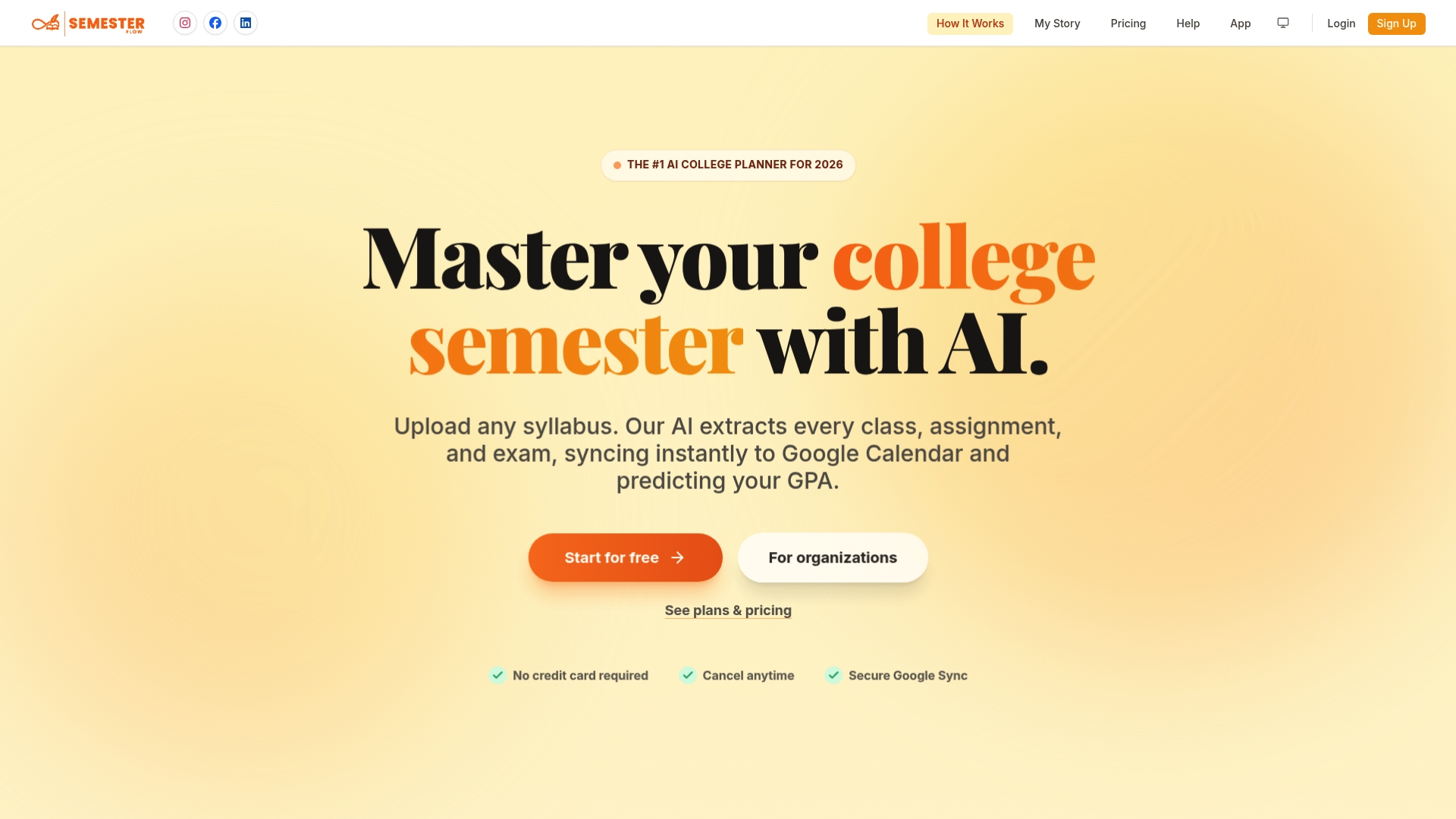
If you want an academic-specific option, we built Semester Flow for exactly this job. You upload your syllabi, and our AI extracts class schedules, assignments, and exams, then syncs them with Google Calendar so every deadline lands where you will see it. We track your GPA in real time, flag courses where grades are slipping, and show what you need on remaining work to reach your target. Our document organization keeps coursework tidy in Google Drive, so files are there when deadlines hit.
You can start with our free trial and see how it fits your semester. When you are ready to compare plans, visit our pricing page: Pro is $7.99 per month, and Parent is $15 per month for families who want to monitor progress. Organization plans, which suit fraternities, sororities, and chapters, are available; current prices are on our pricing page. Try it on one course this week and run your first Friday review from a calendar that already knows your syllabus.
FAQ
Which AI is best for calendar planning?
The best choice depends on your needs. General AI calendar apps suit people with meeting-heavy schedules, while student-focused planners suit people whose calendar is driven by syllabi, assignments, and exams. Test a free tier of each against one real week before you commit.
Can ChatGPT organize my calendar?
A general chat assistant can analyze a calendar you paste in and propose a better week, but it cannot change your calendar unless it is connected to one. Use it for weekly reviews and rescheduling briefs, then apply approved moves yourself. Avoid pasting sensitive details.
Can I use AI to create a calendar?
Yes. Give an AI your syllabus or task list and it can produce dated entries, study blocks, and review sessions that you import into Google Calendar or Outlook. Always check extracted dates against the original document before relying on them.
Is there a free AI calendar?
Many AI calendar and planning tools offer free tiers or trials with limited features. We offer a free trial of Semester Flow so you can test syllabus syncing before paying. Compare what each free plan includes, especially sync limits and data controls.
Sources
- Arxiv
- Libraetd
- Take Control of a Chaotic Schedule with AI, A The difference for Executive Assistants - Workplace AI Institute