

To import an .ics file into Google Calendar, use Settings → Import & Export on a desktop browser for a one-time copy of the events, or use Add other calendars → From URL to subscribe and get live updates. Google recommends a computer browser for both tasks, since the mobile apps do not offer a full import workflow.
TL;DR:
- Put imports in a dedicated calendar first, test a short file, and inspect dates, times, and time zones before adding the full schedule.
- Standard imports can lose guest lists and video meeting links, and unusual recurring rules may transfer incorrectly; subscriptions suit changing calendars you need only to view.
- A subscribed calendar is read only, and Google may take a few hours to show publisher changes; synchronization is not instant.
- Google limits .ics imports to 1 MB; split larger files by date range, and import each .ics file inside a ZIP archive separately.
Table of Contents
- What an .ics File Is and When to Import vs Subscribe
- Importing an .ics File on a Computer
- Subscribing to an .ics URL for Live Updates
- Mobile Limitations and Workarounds for iPhone and Android
- Fixing Common Import Problems
- A Quick Checklist Before You Import
- An Automation Option for Students Managing Syllabi
- A Note on Common Pitfalls
- Try Semester Flow Instead of Manual Imports
- FAQ
- Sources
What an .ics File Is and When to Import vs Subscribe
An .ics file follows the iCalendar format, a standard way to package event details like date, time, location, and description so different calendar apps can read them. You'll run into .ics files most often from event registrations, flight confirmations, webinar invites, or a calendar exported from another platform.
The choice between import and subscribe depends on whether the source will change later. Importing creates a static snapshot: the events land in your calendar and stay put even if the original source updates. Subscribing by URL keeps a live link to the source, so changes made there show up automatically.
Importing has trade-offs worth knowing before you start:
- Guest lists often don't transfer completely, so attendees may need to be re-invited manually.
- Video conferencing links, including Google Meet details, may not be preserved during import.
- Recurring event rules may import incorrectly if the original file formats them unusually.
Subscribing avoids most of these issues for public calendars but comes with its own limits, covered below.
Importing an .ics File on a Computer
Importing works best from a desktop browser. Here's the full sequence:
- Open Google Calendar on a computer and sign in to the account where you want the events to appear.
- Click the gear icon, then select Settings.
- In the left menu, click Import & Export.
- Under "Import," click Select file from your computer and choose your .ics file.
- Pick the destination calendar from the dropdown.
- Click Import.
Before step 4, it's worth creating a new, separate calendar just for this import. That way, you can review what landed and delete the whole batch in one move if something looks off, without touching your main calendar.
If your file came as a ZIP archive (common with exports from other calendar platforms), extract it first. Each .ics file inside needs to be imported separately, since Google Calendar's import tool reads one file at a time.
Once the import finishes, Google shows a confirmation with the number of events added. Open your destination calendar and spot-check a few entries for correct dates, times, and time zones. If you spot duplicates from a prior attempt, select the events and delete them, or remove the whole staging calendar and start over.
Pro Tip: Import a single test event first by creating a trimmed-down copy of your .ics file, confirming it lands correctly, then importing the full file.
Subscribing to an .ics URL for Live Updates
When the source calendar keeps changing, like a sports league schedule or a shared team calendar, subscribing is the better fit. Here's how:
- Open Google Calendar on a computer and find Other calendars in the left sidebar.
- Click the plus icon, then choose From URL.
- Paste the public .ics link into the field.
- Click Add calendar.
This method, described in Google's subscribe guide, creates a read-only calendar that pulls updates from the publisher. You won't be able to edit individual events, and sync isn't instant: Google checks subscribed calendars on its own schedule, so new changes can take a few hours to appear.
Subscribing makes sense when you want a living view of someone else's schedule. Import makes more sense when you need to own and edit the events yourself, or when the source won't be updated again.
Mobile Limitations and Workarounds for iPhone and Android
The Google Calendar mobile app doesn't include an Import & Export menu or a reliable "From URL" subscribe option, so Google points users toward a computer browser for both tasks. If you're stuck on a phone, a few workarounds can get you close:
- On iPhone: open the .ics file from Files or Mail and let it add to Apple Calendar, then make sure that calendar account is set to sync with your Google account in Settings.
- On Android: try tapping "Add to Calendar" directly from Gmail or your file manager. Some Android calendar apps handle .ics files natively.
- If neither works: upload the file to Google Drive from your phone, then open a desktop browser later to run the standard import.
None of these mobile paths give you the destination-calendar control or duplicate-checking that the desktop import offers, so for anything beyond a single event, waiting for a computer saves time.
Fixing Common Import Problems
Most import failures trace back to a handful of causes, and each has a documented fix.
- File too large: Google caps imports at 1 megabyte. If your .ics file exceeds that, split it by date range or re-export a shorter period from the original source.
- Events don't appear: double-check you're signed into the right account and picked the correct destination calendar during import.
- Malformed file: open the .ics in a text editor and confirm it starts with
BEGIN:VCALENDARand contains matchingBEGIN:VEVENT/END:VEVENTpairs; re-export from the source app if the structure looks broken. - Duplicate events: these usually come from importing the same file twice. Importing into a staging calendar first makes cleanup a one-click delete instead of a hunt-and-remove job.
- Missing guests or Meet links: expected behavior for standard imports. If you need those fields preserved, subscribing or a Calendar API-based approach handles that better than the import UI.
A 1 MB file limit sounds generous until a multi-semester schedule export or a year of recurring meetings pushes past it, which is a common reason bulk imports fail.
A Quick Checklist Before You Import
A few minutes of prep avoids most import headaches:
- Create a dedicated destination calendar so you can review results and roll back cleanly.
- Confirm the file is under the 1 MB limit, and split it if it's close.
- If you edited the .ics manually, check that the header and footer lines are intact.
- Export a backup of your primary calendar before any bulk change, just in case.
- Test with one event or a short date range before committing the full file.
Pro Tip: Keep your staging calendar around for a day or two after import. If something looks wrong a day later, you'll know exactly where to look.
An Automation Option for Students Managing Syllabi
Manually importing one .ics file is quick. Doing it for five classes a semester, each with its own exam dates, assignment deadlines, and recurring lecture times, gets old fast. That's the exact problem we built our academic planner to solve: upload a syllabus, and we extract class times, assignments, and exam dates, then sync all of it to your Google Calendar automatically.
Beyond the initial sync, we keep things current. When a professor updates a due date, you don't have to re-export and re-import anything.
For a closer look at the workflow, we've written about turning a class schedule into calendar events and syncing exam dates with AI.

A Note on Common Pitfalls
The mistakes I see most often with student imports: skipping the staging calendar, then importing a messy registrar export straight into a primary calendar, and trying to import a multi-year .ics file without checking its size first. Test a short date range before committing to the full import, every time.
— Haden
Try Semester Flow Instead of Manual Imports
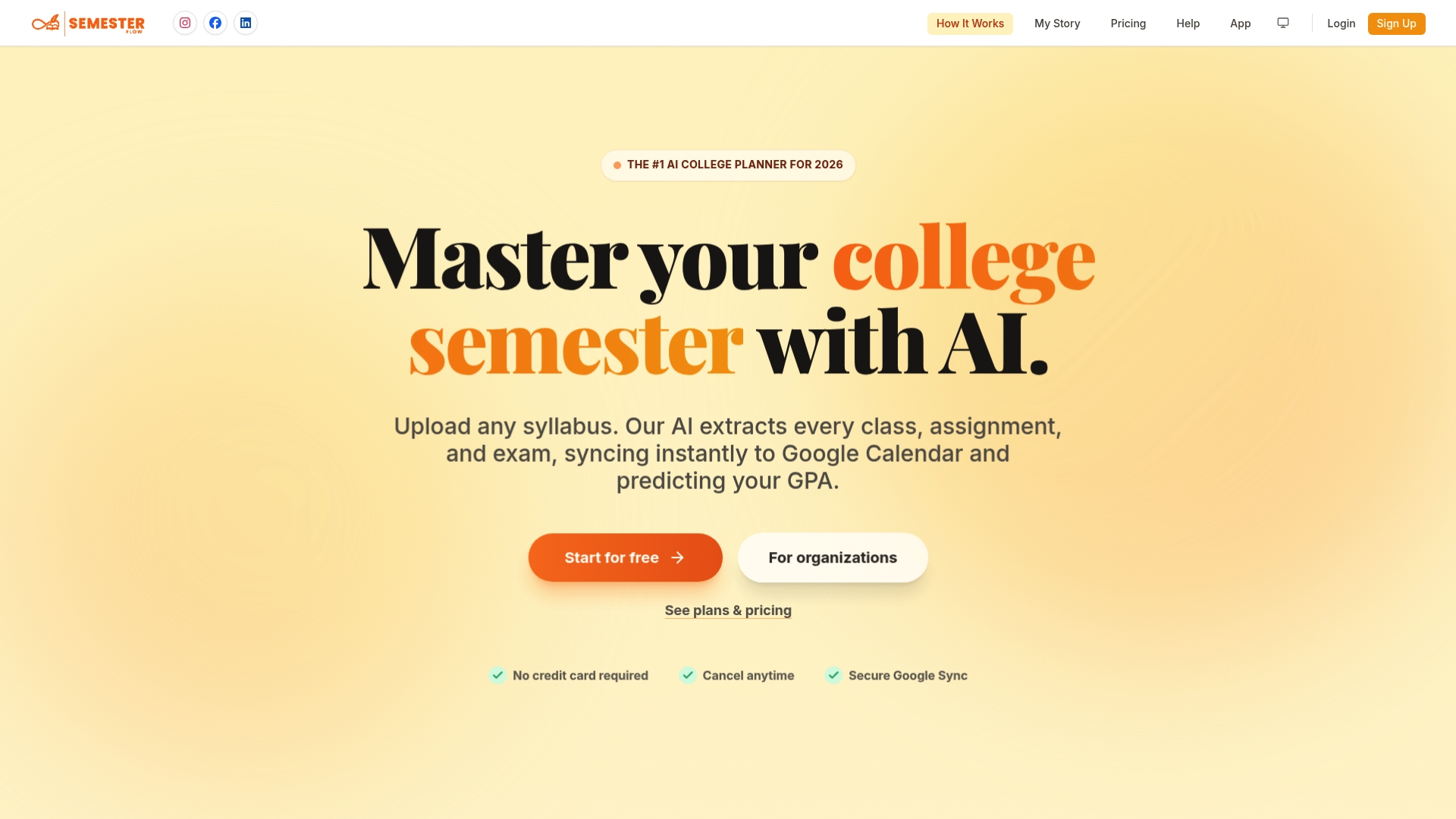
If you're importing class schedules or exam dates every semester, automating that process saves the repeat work. We parse your syllabus directly and sync everything to Google Calendar without a single .ics file changing hands.
- Free Trial: $0 per month, no commitment to start.
- Pro: $7.99 per month for individual students.
- Parent: $15 per month for a monitored account.
Check our pricing page to compare plans and start a free trial.
FAQ
How do I export my entire Google Calendar?
Open Settings in Google Calendar, select the calendar you want under "Settings for my calendars," then choose "Export" to download a ZIP file containing your events as .ics data. This works for a single calendar at a time, so repeat the process for each calendar you want backed up.
Why isn't my CSV import working in Google Calendar?
Google Calendar's import tool only accepts .ics (iCalendar) files, not CSV files directly, which is a common source of import failures. Convert your CSV to .ics format using a conversion tool or export directly from the original application in iCalendar format instead.
How can I open an ICS file online?
Most .ics files open automatically in your default calendar app when you click them, but you can also view the contents in a plain text editor since the format is readable text. Several free online ICS viewers let you preview event details without importing anything.
How can I create an ICS file?
Most calendar apps, including Google Calendar, Outlook, and Apple Calendar, let you export individual events or full calendars in iCalendar format through their settings or sharing menus. For a single custom event, some online generators let you fill in date, time, and details to produce a downloadable .ics file.
Sources
- Import events to Google Calendar - Computer - Google Calendar Help
- Fix problems importing - Google Calendar Help
- Import ICS to Google Calendar the Right Way (Updated 2025)